Skip to content

SharePoint archiving with ShArc

Archive inactive SharePoint content selectively using metadata-based rules. Lower storage costs, avoid site-level lock-in, and enable end-user self-restore.

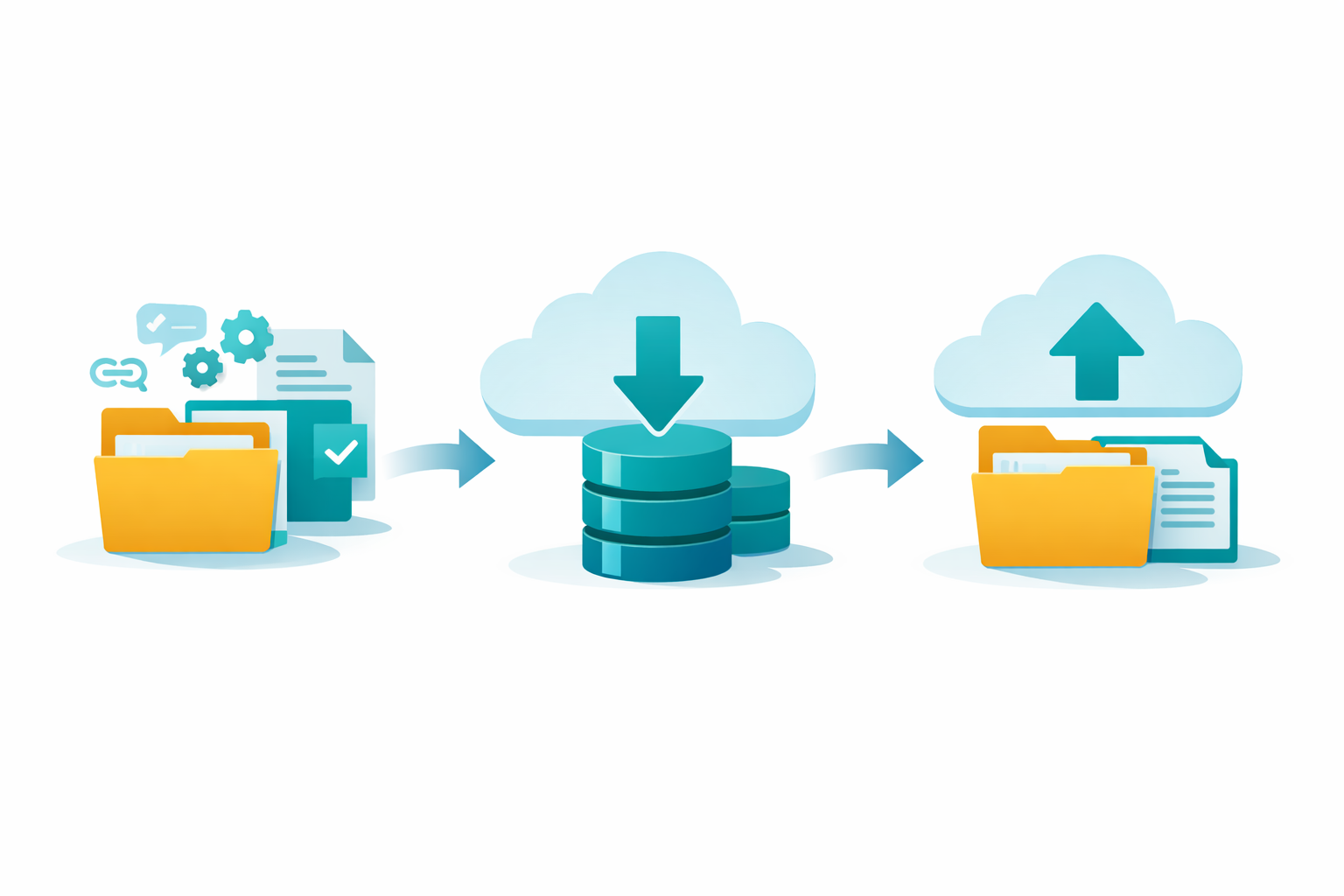
An illustration that visualizes in three steps SharePoint archiving

Trusted by leading organizations


What is SharePoint archiving?

SharePoint archiving addresses a common challenge: large volumes of content that are no longer actively used but must still be retained for business or regulatory reasons.

It is the process of moving inactive SharePoint content to a lower-cost storage tier, reducing the live storage footprint and ongoing costs, while preserving metadata, permissions, and the existing compliance context.

This differs from retention or backup mechanisms, which keep data in primary storage or duplicate it elsewhere, but do not actively reduce SharePoint storage consumption.

Archiving
Archiving

Moves data to lower-cost storage while reducing live footprint

Backup icon
Backup

Preserves copies for recovery but doesn't reduce storage

Retention icon
Retention

Keeps data in place for compliance without storage reduction

Why Archive SharePoint? Cost and Storage Challenges

As your SharePoint environment grows, storage quotas and bills can rise quickly.

Icon of 4 arrows pointing away from each other
Storage growth

 Inactive content still consumes space in your tenant's primary storage pool until it is archived or deleted. Data accumulates faster than teams realize.


Green icon of a exclamation mark on star-shaped background
Quotas & extra costs
Microsoft's SharePoint storage model can become expensive when additional capacity is needed or quotas are exceeded. Overages add up quickly.
Icon of a green security lock
Site-level lock-In
 Microsoft 365 Archive provides a way to move entire sites into a cold archive tier — but only at site level, limiting flexibility for granular content management.

ShArc vs. Microsoft 365 Archive: SharePoint archiving compared

This section compares ShArc and Microsoft 365 Archive for SharePoint archiving use cases, including file-level control, restore options, and storage cost visibility.
Layer2-ShArc-Favicon
Logo Microsoft Archive
ShArc
 
Microsoft Archive
Archiving granularity
Site-, library-, and file-level, controlled by metadata-based rules
Only full sites can be archived today
Restore effort
End users restore files directly with one click from SharePoint/Teams/OneDrive interface
Admin must reactivate entire site
Reactivation delay
Immediate; re-archiving possible anytime
Can take up to hours; re-archive blocked for 4 months
Impact on Collaboration
Archived files remain linkable and visible
Archived sites inaccessible until reactivated
Reporting & monitoring
Dashboards showing archive status and cost impact
No native reporting on archived content
Governance & flexibility
Custom rules by file type, location, metadata
Limited to site-level configuration

"ShArc has done what Microsoft clearly refused to do. Utilizing a cheaper cold storage approach as a backend for live active SharePoint sites is perfect! End users don't see a change but data storage costs are kept in control. Its an ingenious solution to a problem all SharePoint admins face." 

John Terrence  |  IT Manager  |  Simple Mills Inc.

 Compare ShArc and Microsoft 365 Archive side by side 

How ShArc works—simple, targeted, efficient

ShArc's process is designed for predictable outcomes and minimal disruption.

1
Define metadata-based rules

Set policies based on last modified date, file type, file size, or location to identify inactive content.

2
Simulate archiving impact

Preview potential cost reductions and understand which files will be affected before committing.

3
Archive selected files
Move individual files—not entire sites—according to your policies, preserving metadata and permissions.
4
Monitor savings & trends
Track storage reduction and cost impact over time with dashboards showing real ROI.
5
Enable one-click restore
End users can retrieve archived files directly without IT support, reducing operational overhead.
This approach ensures your archival strategy is not only cost-effective but also operationally manageable.
ROI Calculator

Calculate your storage cost savings

Archiving decisions are often driven by financial impact. Use our interactive tool to estimate your potential savings.

Green icon for automation
Estimated monthly & annual savings

See projected cost reductions over time

Icon of a green rocket
Trend impact on storage quotas
Understand long-term storage trajectory
Green icon of a calendar
Expected payback period
Calculate time to ROI based on your usage

Start with your current data footprint

See how much you can save by moving inactive files out of high-cost storage. Get a personalized estimate in minutes.

When ShArc makes sense for your organization

 Each use case reflects a common pattern where file-level control and user-friendly restore drive cost savings.

Icon of 4 arrows pointing away from each other
Large tenants with high storage consumption

Enterprise organizations with SharePoint footprints exceeding allocated quotas, facing unexpected storage bills.

Green icon with a number of people
Teams with long-tail content

Departments with project files, documents, and assets that are rarely accessed but must be retained for reference.

Synchonization icon
Cost optimization without disruption
Organizations needing to reduce storage costs without affecting active collaboration or removing content entirely.
icon-sicherheit
Compliance with low storage costs
Environments where compliance and governance require long retention periods but high-cost storage isn't justified.

Frequently asked questions

Common questions about SharePoint archiving and how ShArc compares to native solutions.

What is SharePoint archiving vs backup?

Archiving relocates inactive data to lower-cost storage, reducing your live storage footprint and ongoing costs. Backup preserves recent data for recovery after data loss — these are two distinct purposes. Archiving is about cost optimization and lifecycle management, while backup is about disaster recovery.

Can Microsoft 365 Archive archive individual files? Currently, Microsoft 365 Archive supports archiving full sites only. Granular file-level archiving is not supported at this time. This means you cannot selectively archive specific files or folders — you must archive the entire site, which then becomes inaccessible to users until reactivated.
Can end users access archived content without IT? With ShArc, yes — end users can access archived files through the SharePoint, Teams, or File Explorer interface, without IT involvement. With Microsoft 365 Archive, the entire site must be reactivated by an administrator before users can access any content from that site.
Will archived content still be secure and compliant? Yes. Both ShArc and Microsoft 365 Archive keep metadata, permissions, and compliance context intact after archiving. Your data remains protected and audit-ready throughout its lifecycle in the archive.
Does archiving actually reduce storage costs? Yes — moving inactive content into lower-cost storage frees up high-cost primary tenant storage and lowers overall costs. Microsoft 365 Archive moves data into a cold storage tier at reduced per-GB rates. ShArc provides visibility into exactly how much you can save before you commit to archiving.

Ready to Reduce SharePoint Storage Costs?

ShArc helps you archive smarter: reducing storage costs, enabling file-level control, and empowering users to restore content without IT.
Compare options, calculate ROI, or see ShArc in action today.