

Last updated: July 15, 2026
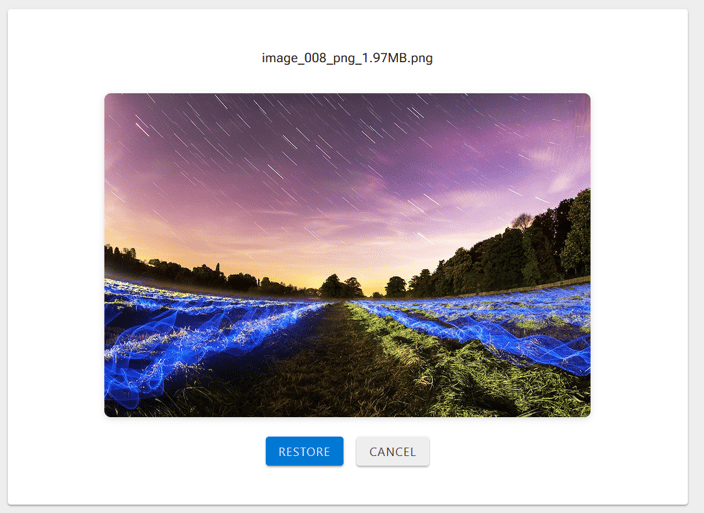
ShArc file preview allows users to view a preview of supported archived image and video files before restoring them to SharePoint. When a user selects the file name in SharePoint, ShArc opens a preview page instead of starting the restore immediately. The user can then restore the file or return to the document library without changing its archived state.
By default, ShArc captures thumbnails for supported image and video file types. The default extension list is based on the image and video formats Microsoft supports for previewing files in OneDrive, SharePoint, and Teams. ShArc does not enable preview for every file type that Microsoft can preview. PDF, Office, and audio files are not part of the default preview scope.
Format-specific limitations, such as file size or browser restrictions, may still apply. For further details about Microsoft preview support, see File types supported for previewing files in OneDrive, SharePoint, and Teams.
Important
File preview is disabled by default. Thumbnail capture can happen during archiving independently of whether previews are currently shown to users. A preview is only displayed when file preview is explicitly enabled and a suitable thumbnail is available for the archived file. Files without an available thumbnail continue to use the standard direct restore behavior.
Enable file preview
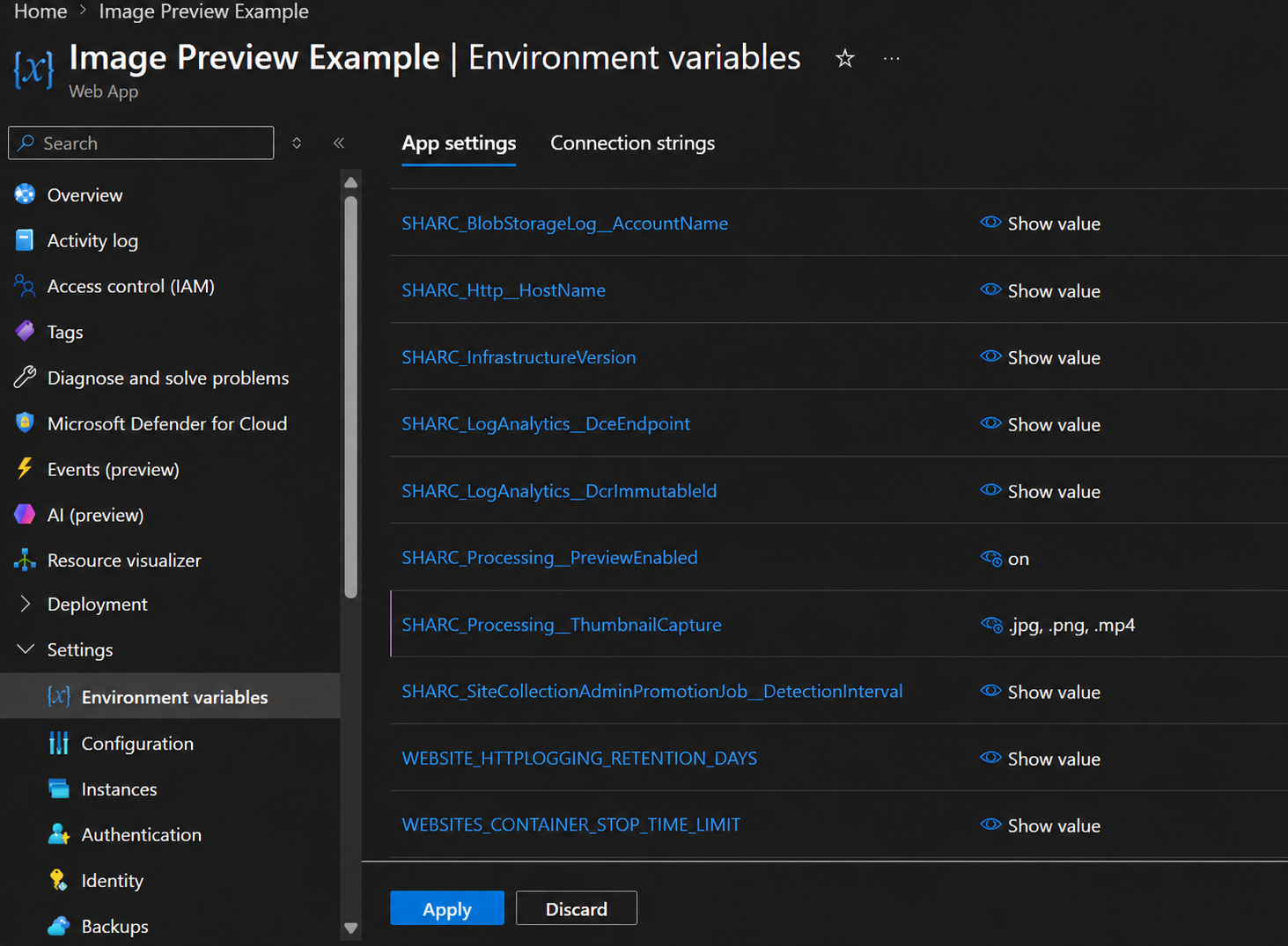
ShArc administrators can enable file preview through an application setting on the ShArc App Service.
- Open the Azure portal.
- Open the ShArc App Service.
- Under Settings, open Environment variables.
- Add or update the following application setting:
Apply and confirm the change. The App Service restarts to apply the configuration. After the restart, users can see previews for archived files where a suitable thumbnail is available.
Optional: Adjust thumbnail capture
In most environments, the default thumbnail capture configuration is sufficient. Administrators only need to configure SHARC_Processing__ThumbnailCapture if they want to restrict or extend which file extensions are eligible for preview.
To customize thumbnail capture, add the following application setting and enter a comma-separated list of file extensions:
ShArc checks whether a generated thumbnail is small enough to preserve the expected storage savings. If no suitable thumbnail can be created or stored for a file, the file is still archived normally but no preview is shown.
How file preview works
When file preview is enabled and a suitable thumbnail is available, selecting the file name in SharePoint opens the ShArc preview page. Opening the preview does not restore the file. Its original content remains archived in Azure Blob Storage until the user selects Restore.
From the preview page, users can choose one of the following actions:
- Restore: ShArc restores the original file to its SharePoint document library. After the restore is complete, the file is available with its original extension and can be opened normally.
- Cancel: ShArc returns the user to the SharePoint document library without restoring the file. The file remains archived and continues to appear as a .sharc file.
If no preview is available for the selected file, ShArc continues to use the standard direct restore behavior.
Previously archived files
Thumbnail capture depends on the ShArc version and thumbnail capture configuration that were active when the file was archived. It does not depend on whether preview display was already enabled for users at that time.
If an archived file already has a stored thumbnail, enabling SHARC_Processing__PreviewEnabled makes the preview available without restoring and archiving the file again.
Restoring and archiving again is only required for files where no thumbnail was captured, for example because the files were archived before thumbnail capture was available or because their file extension was not included in SHARC_Processing__ThumbnailCapture at the time of archiving.
To generate missing thumbnails for those files, restore the relevant files to SharePoint and run archiving again for the relevant SharePoint site or document library, or allow an applicable archiving policy to process the files.