Archiving data shouldn't mean compromising usability. ShArc was built to preserve the familiar SharePoint experience, even after files have been archived to Azure Blob Storage. ShArc gives you two ways to bring a file back: a one-click, self-service restore for everyday users, and a bulk restore for IT admins who need to recover an entire site or library at once
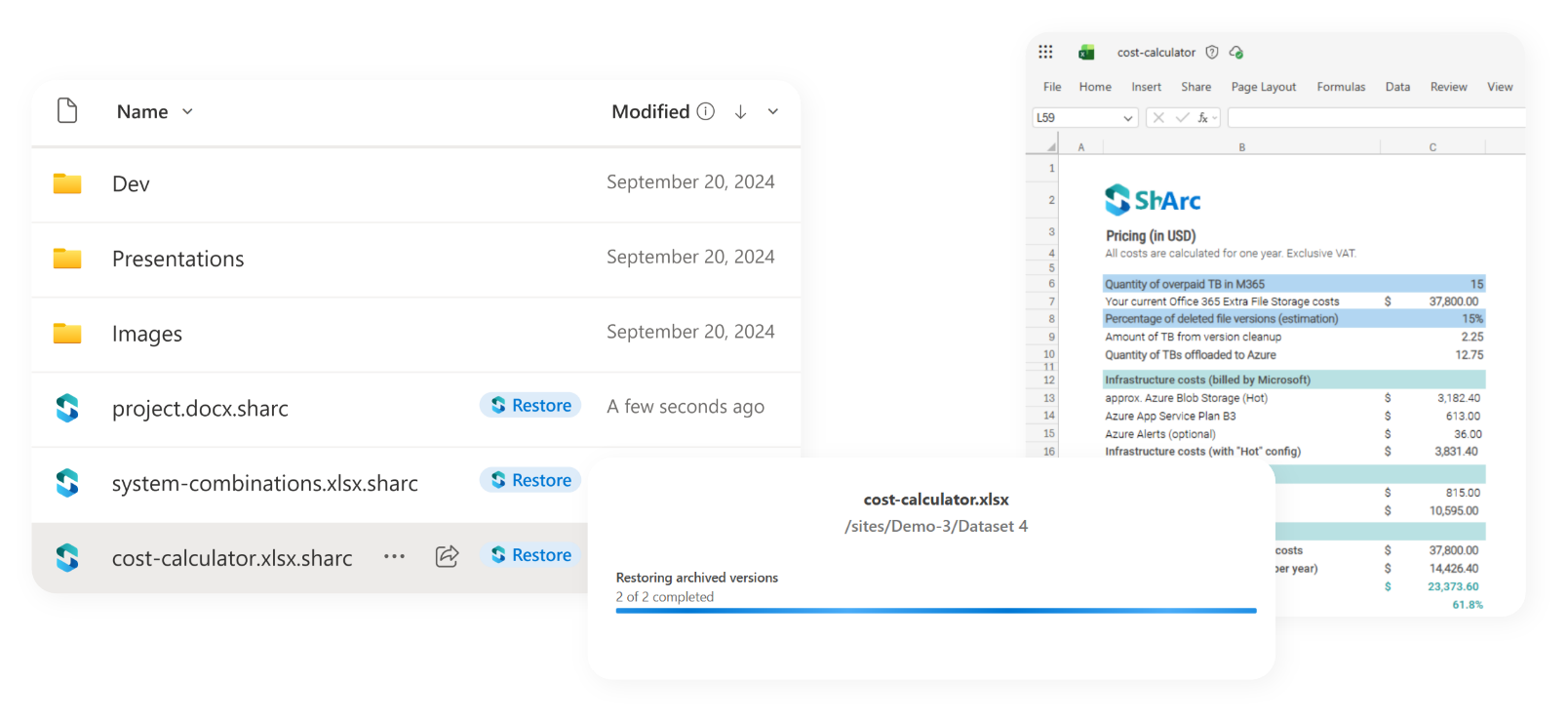
3 End users see and work with files exactly as they always have.
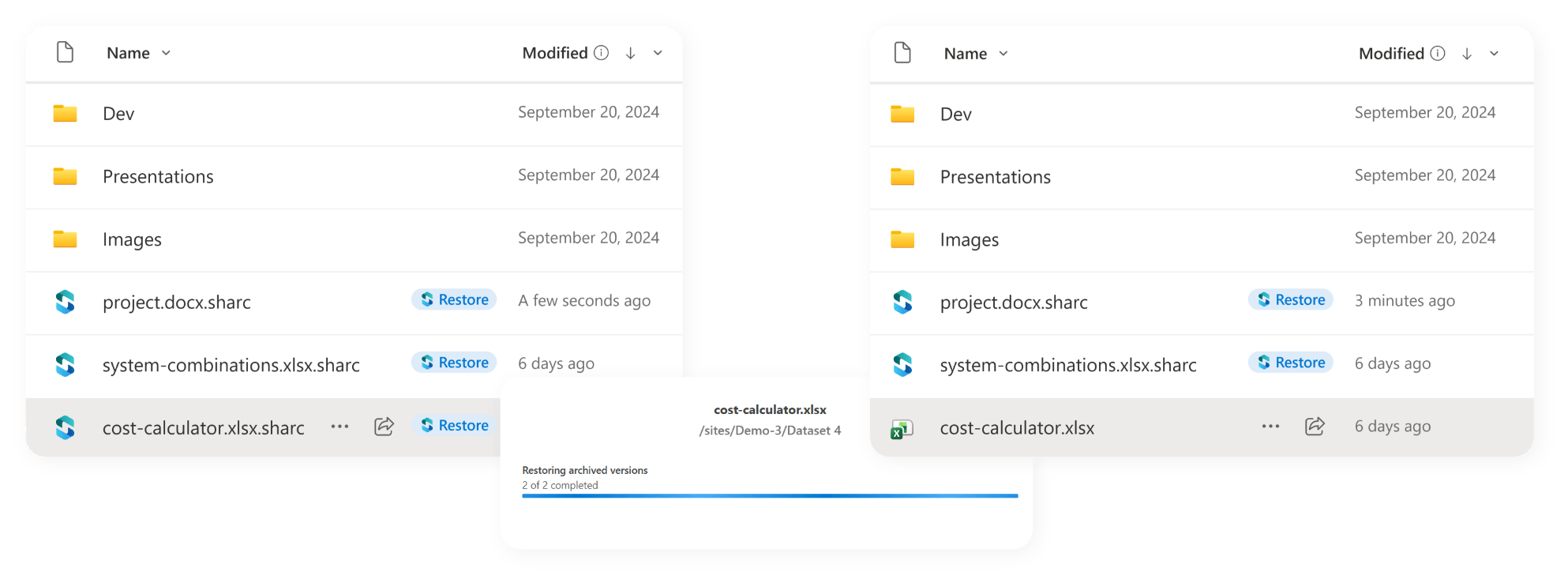
4 After the end user restore, the icon changes.
Give your users familiar access to files, even after archiving
Behind the scenes, ShArc replaces archived files with lightweight“.sharc” stub files and with aShArc icon. The files still behave like the originals. What this means for your users:
Fits your existing workflows
Uses the tools your users already know and trust
Maintains all existing file permissions and access structures
Keeps your teams productive, even with archived files from months ago
File access as usual
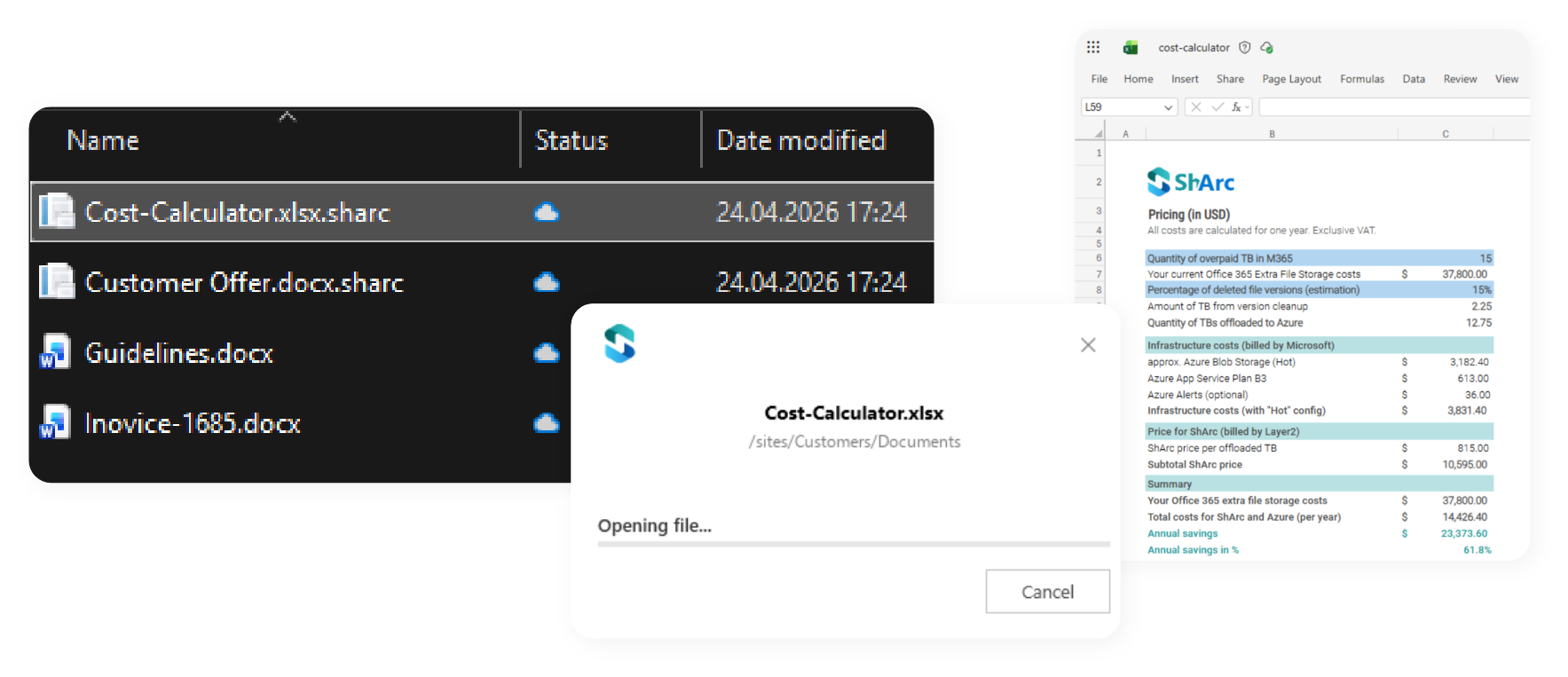
When a user clicks, they’re redirected to the browser view of the file, and within seconds the file is ready to edit, directly in the web app (e.g., Word, Excel, PowerPoint Online).
Teams, OneDrive and SharePoint
Whether end users access their content through Teams, OneDrive, or SharePoint: retrieving an archived file is as simple as clicking on it.
No training, no extra steps, no IT tickets. Everyone can do it.
Good for users, great for IT teams
This “1 click restore” principle ensures that storage optimization doesn’t get in the way of efficiency. Your users stay focused on their work, not on searching for missing files or waiting for IT to restore them. For IT teams that means:
Fewer support tickets
Fewer restore requests
Happier users who stay in flow
By keeping the retrieval process intuitive and fully integrated, ShArc bridges the gap between storage optimization and user convenience, making it the ideal tool for growing SharePoint environments with high productivity demands.
You can also restore entire sites and libraries at the admin level with ShArc's restoring feature.