

Last updated: September 15, 2026
Instructions for updating the ShArc application and, when explicitly required, the Azure infrastructure of an existing ShArc deployment.
Introduction
In most cases, only the ShArc application needs to be updated. This is the usual update process for an existing ShArc installation. If Layer2 has explicitly instructed you to update the supporting Azure resources or configuration, continue with the infrastructure update instructions.
- ShArc application update: The standard update process for an existing ShArc installation. The latest ShArc application version is retrieved when the App Service is fully stopped and started again.
- ShArc infrastructure update: Only required when Layer2 explicitly instructs you to run the installation script in
Updatemode.
Important: Do not run an infrastructure update as part of every regular ShArc update. Unless Layer2 has explicitly informed you otherwise, update only the ShArc application.
Update the ShArc Application
Updating the ShArc application is the usual update process for an existing installation. When Layer2 announces a new ShArc application version, the update can be applied through the ShArc App Service in the Azure Portal.
1. Open the ShArc App Service
- Sign in to the Azure Portal.
- Open the resource group containing the ShArc resources.
- Select the ShArc App Service.
2. Stop the App Service
In the App Service overview, select Stop.
Wait until the App Service is fully stopped. This usually takes approximately 20 to 30 seconds.
3. Start the App Service
Select Start and wait until the App Service is running again.
When the App Service starts, it automatically checks for the latest available ShArc application image and loads the new version.
Note: Use a full Stop and Start cycle instead of only using the Restart option. In some cases, a regular restart may continue using the existing application image.
4. Verify the Application Update
- Open the default domain of the ShArc App Service.
- Confirm that the ShArc interface loads successfully.
- Check the version displayed in the ShArc interface and confirm that the expected version is installed.
Update the ShArc Infrastructure
An infrastructure update is only necessary when Layer2 explicitly informs you that an update to the Azure resources or configuration is required.
When instructed to perform an infrastructure update, use the latest ShArc installation package and run the installation script in Update mode.
1. Download the Latest Installation Package
Download ShArc installation package
Please note that the package is password-protected. Please do not hesitate to get in touch with us if you need access to the installation package.
2. Open Azure Cloud Shell
Open Azure Cloud Shell in the Azure Portal.
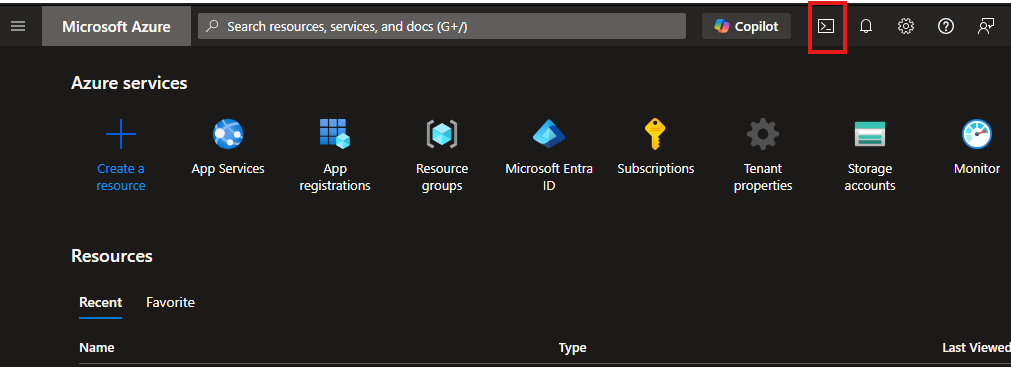
Note: If you are asked which shell you want to start, choose PowerShell.
3. Upload the Installation Files
Extract the latest installation package and upload Install-Sharc.ps1 and all included JSON files to Azure Cloud Shell.
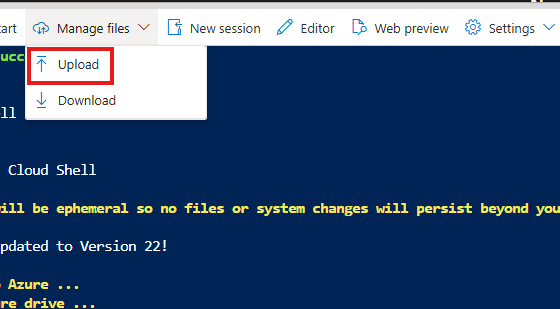
4. Run the Infrastructure Update
Run the following command:
.\Install-Sharc.ps1 -Mode Update
The Update mode adjusts and appends existing configurations and resources to meet new requirements or apply improvements.
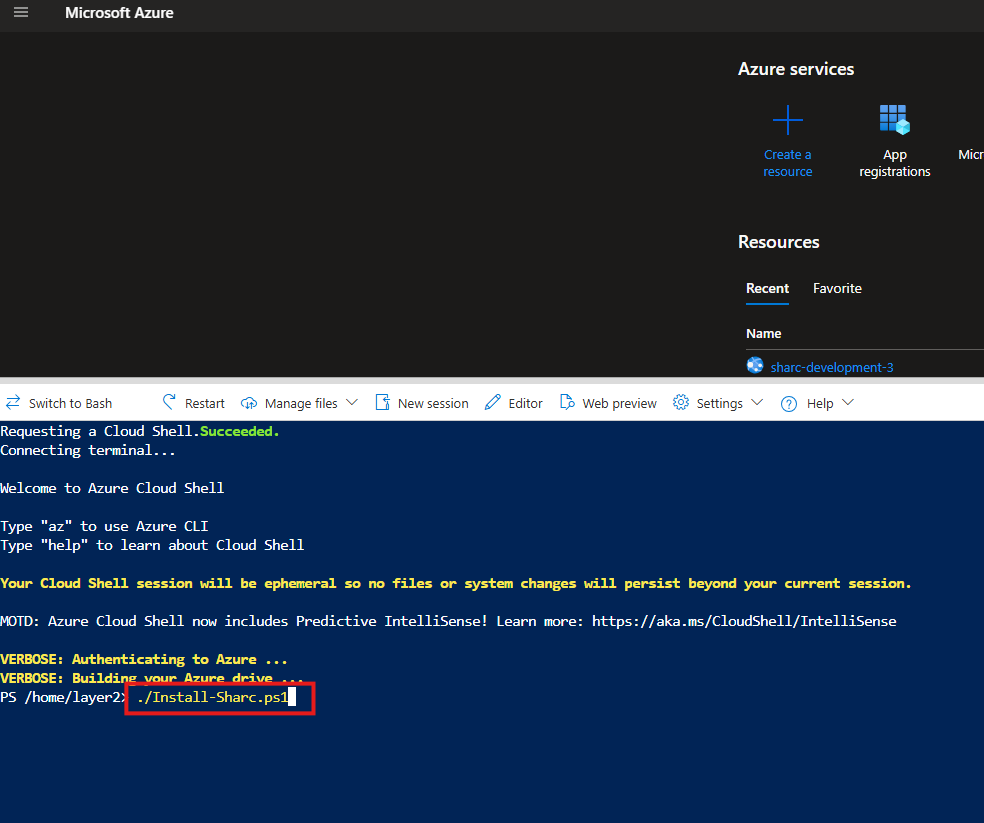
Please note: No manual App Service restart is required after completing an infrastructure update.
Script Modes
The deployment script provides several modes. The default mode is Install. A mode can be specified by adding -Mode <mode> when starting the script.
Note: The following modes are provided as a technical reference. For regular ShArc updates, updating the application is usually sufficient. Only use
Updateor one of the other script modes when the required action is clear.
| Name | Description |
|---|---|
Install |
This is the default mode. It installs everything required for ShArc, including App Registrations and Azure resources. |
Update |
Used for infrastructure updates when explicitly required. It adjusts and appends existing configurations and resources to meet new requirements or apply improvements. |
UninstallAll |
Removes everything required for ShArc, including App Registrations and Azure resources. |
EnsureAppRegistrations |
Makes sure that the App Registrations exist. If they already exist, no changes are made. If they do not exist, they are created. |
RemoveAppRegistrations |
Removes only the App Registrations and leaves all other resources unchanged. Important: Without the App Registrations, ShArc will stop working. |
UninstallKeepAppRegistrations |
Removes only the Azure resources but keeps the App Registrations for further use. |
Installing ShArc for the First Time
For instructions on deploying a new ShArc environment, see Install ShArc in Your Azure Tenant.