

Last updated: July 31, 2026
This guide explains the available methods users can use to restore archived ShArc files. Archived files can be restored in different ways, depending on the user's preferred workflow, the system they are working in, and the available actions in the interface.
SharePoint and OneDrive online
With the SharePoint Framework app deployed, users can restore archived files directly from SharePoint and OneDrive document libraries.
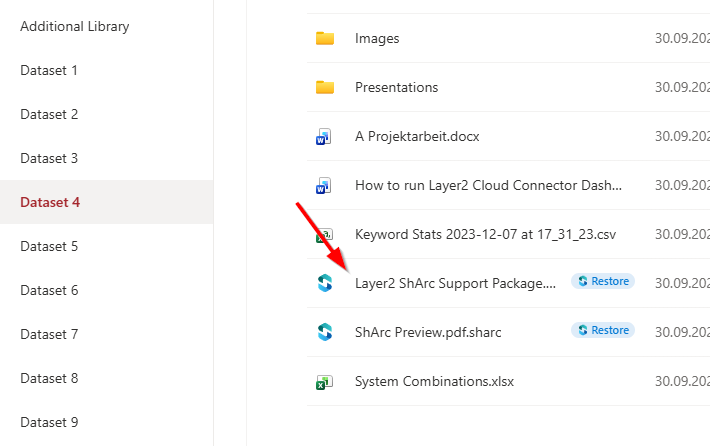
1. 1-click restore on file click
The default restore method is to click the name of an archived file in SharePoint.
When a user clicks the file name, the ShArc restore flow is triggered automatically. This provides a familiar click-to-open experience and allows users to start the restore process directly from the file list.
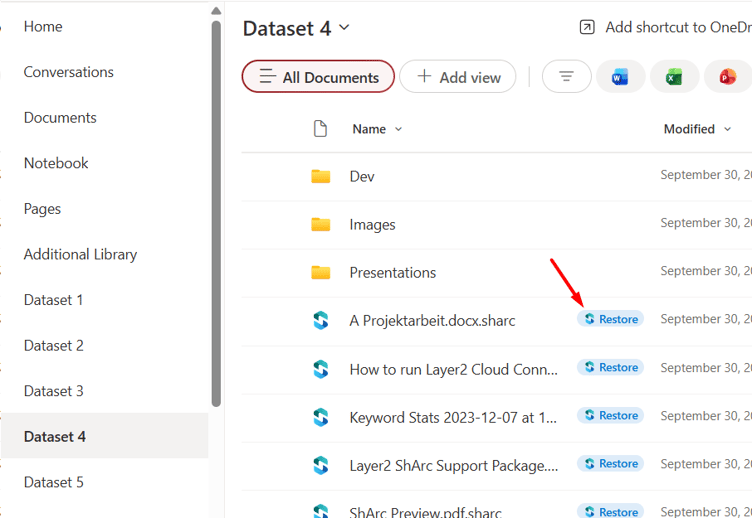
2. Inline “Restore” badge
A “Restore” action is displayed directly next to the file name in SharePoint.
This allows users to start the restore process directly from the file list without opening the file context menu.
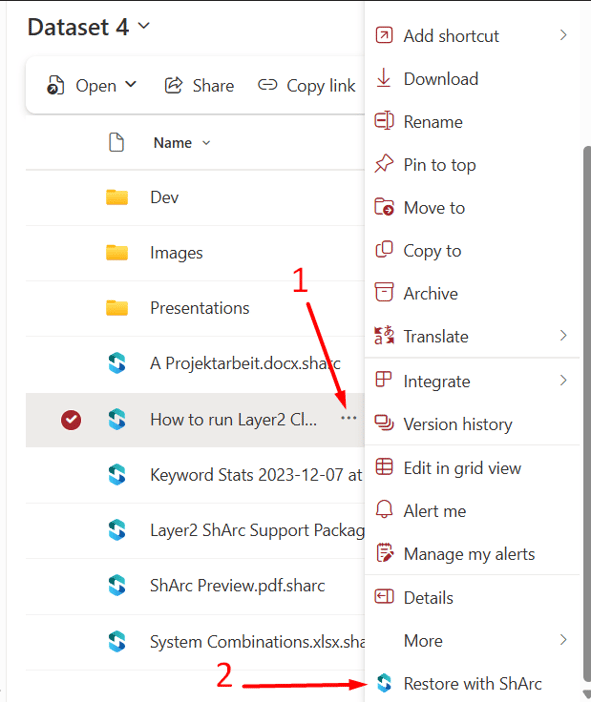
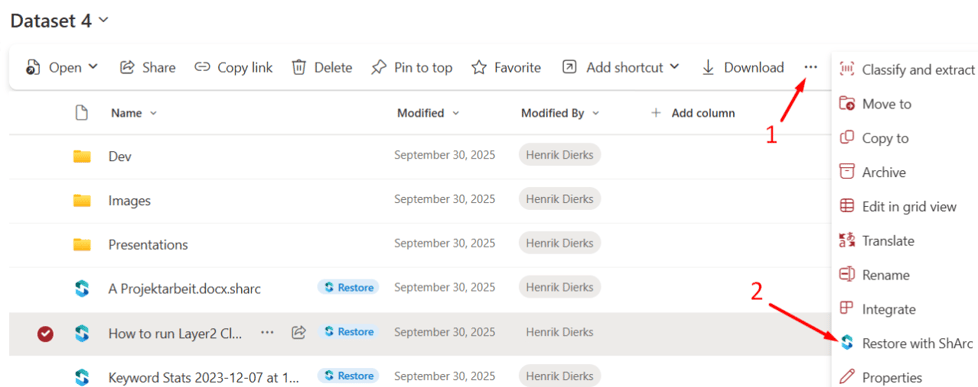
3. File context menu action
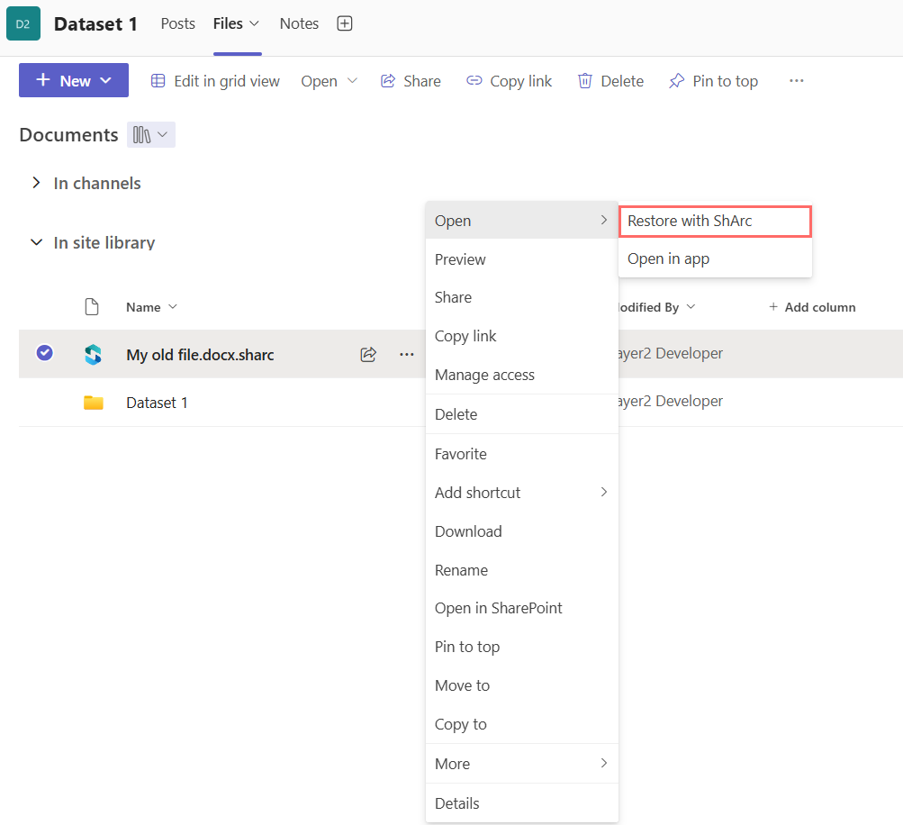
A “Restore with ShArc” entry is available in the file context menu.
Users can open the context menu of an archived file and select “Restore with ShArc” to manually start the restore flow.
Local file system
On Windows, when ShArc Desktop is installed, users double-click the archived file in their synced OneDrive folder. ShArc Desktop signs them in, restores the file, and opens it automatically once OneDrive has finished syncing it.
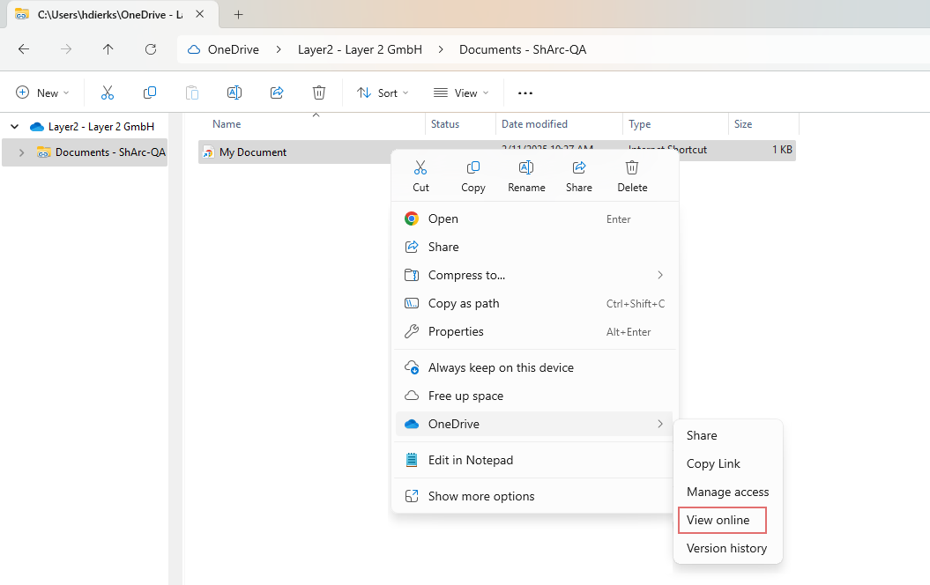
On macOS there is no ShArc Desktop client, so users restore archived files through the OneDrive application instead (this also applies on Windows when ShArc Desktop is not installed). When the option to view the file online is available, it opens OneDrive or SharePoint, where the restore action can be started. If that option is missing, users can open the file location in SharePoint and restore it from the document library.
Microsoft Teams
In Microsoft Teams, users can restore archived files from the file options. The restore action opens the backing SharePoint location and makes the file available again after the restore completes.
External users
Archived files can only be restored back to SharePoint by company employees. External users who need access should reach out to someone with the necessary permissions.