


Last updated: September 14, 2026
ShArc, a tool built as archiving alternative by Layer2 leading solutions, and Microsoft 365 Archive are two solutions aimed at reducing SharePoint Online storage costs by moving cold data to cheaper storage. This article compares ShArc and Microsoft 365 Archive in terms of costs, complexity, and options for archiving and restoring. It ends with key decision factors to help you find the right solution.
Would you prefer to test ShArc directly in your tenant? Request a demo with our experts, who will show you ShArc and help you set it up:
Microsoft 365 Archive cost comparison
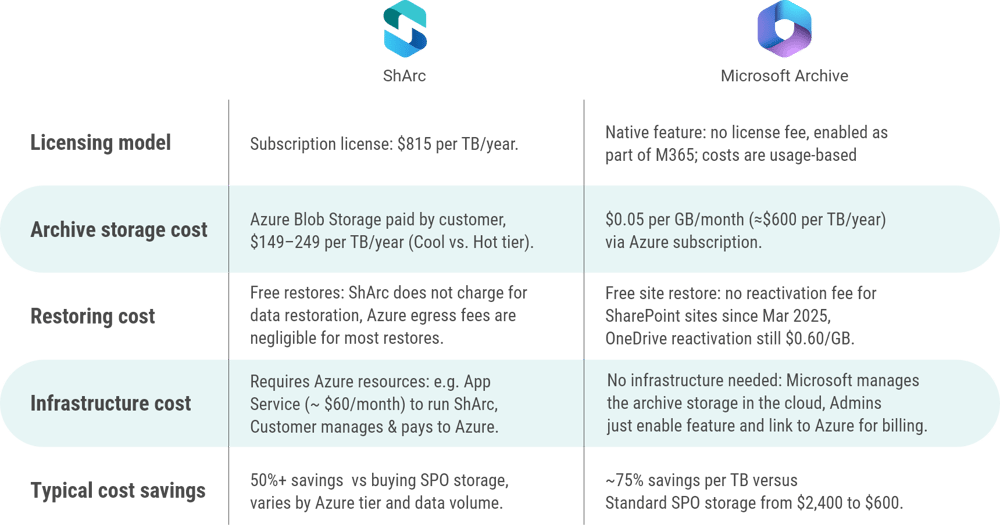
ShArc and Microsoft 365 Archive have different cost models. ShArc is sold as a subscription license per TB of archived data, plus the customer pays for Azure storage and any needed Azure infrastructure. Microsoft 365 Archive is a pay-as-you-go service with costs based on the amount of data archived. Both solutions can significantly reduce costs compared to buying additional SharePoint storage directly.
ShArc pricing
Licenses are purchased in 1 TB increments at $815 per TB per year. This is a flat annual fee for the software. There are no user licenses or hidden fees. Pricing is purely based on the maximum archived volume. Importantly, ShArc does not charge anything to restore data back into SharePoint, bringing files back is free from the ShArc licensing perspective, and end-users restore data using the one-click restore.
In addition to the ShArc subscription, the organization pays for the Azure Blob Storage where the archived files reside and the App Service Plan to host the ShArc service. Even with these, ShArc’s costs come out 61% lower than the equivalent cost of purchasing the same amount of storage from Microsoft (Office 365 Extra File Storage add-on).
Microsoft 365 Archive Pricing
Microsoft charges $0.05 per GB per month for archived data. That equates to $50 per TB per month, or about $600 per TB per year, roughly one-quarter of the cost of standard SharePoint Online storage which is $0.20/GB-month, or $2,400/TB-year. This archive storage cost is metered continuously (billed via an Azure subscription linked to your tenant) and applies only for data that exceeds your tenant’s included SharePoint quota.
As of 2025 there are no other costs for using Microsoft Archive. No separate license and no infrastructure fees, since it’s a service managed by Microsoft. In summary, Microsoft 365 Archive follows a pure consumption model: pay $600 per TB per year for stored data (when applicable). This predictable low unit cost can yield ~75% savings relative to buying equivalent SharePoint space, making it very attractive for large volumes of inactive site collections. If you need more information about Microsoft 365 archiving pricing, see our breakdown with scenarios and calculations.
Complexity, setup, and user experience
Deploying and managing ShArc vs. using Microsoft 365 Archive requires different levels of effort. ShArc is a customer-hosted solution, which means more control and customization but also more setup and maintenance on your end. M365 Archive is a turnkey cloud service, enabled with a few clicks, but less flexible in operation. The user experience also differs significantly: ShArc aims to be seamless for end-users, whereas Microsoft’s Archive is more of a back-end cold storage that end-users won’t interact with by design.
Setup process (initial deployment)
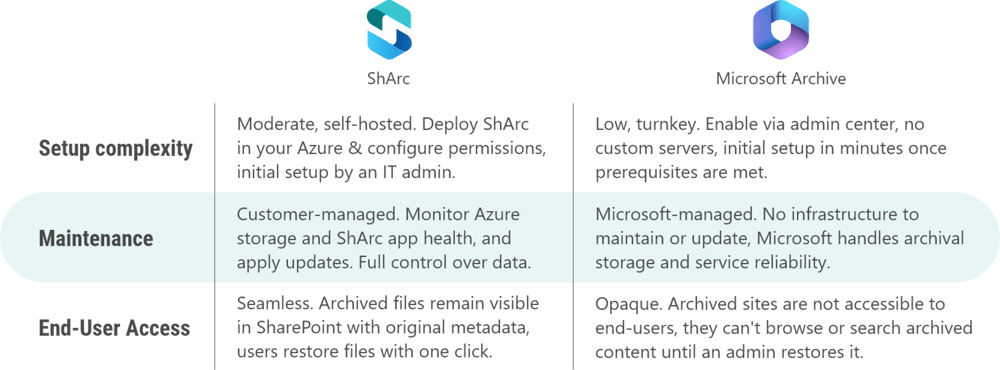
Setting up ShArc involves deploying the application in your Azure tenant. Layer2 provides tools and guidance to install ShArc’s components. You’ll need to create an Azure Storage account for the archived data and an Azure App Service to run the ShArc service. Then you connect ShArc to your SharePoint Online via an admin consent (granting it permissions via Microsoft Graph). This setup is a one-time effort and typically accomplished by an IT administrator with Azure and M365 admin skills.
By contrast, Microsoft 365 Archive has a very straightforward enablement: an admin with the appropriate roles needs to enable Archive in the Microsoft 365 admin center, which entails linking an Azure subscription for billing (using the Microsoft Syntex pay-as-you-go setup). No new servers or installations are required. It’s an on-demand service provided by Microsoft. Once enabled, you simply choose which SharePoint sites to archive via the SharePoint admin GUI or PowerShell. In summary, ShArc’s setup is more complex and hands-on you set up software in Azure, whereas M365 Archive’s setup is built-in and mostly configuration, no custom software to deploy.
Maintenance and updates
With ShArc, because it runs in your environment, ongoing maintenance is your responsibility. You need to monitor the Azure resources (ensure the ShArc service is running and scaled appropriately, and that your storage account has capacity, etc.). Layer2 regularly releases updates to ShArc, adding features and fixes, so you’ll want to apply those updates in your Azure environment to keep the system secure and efficient. Think of ShArc as another application you manage, albeit one that is cloud-based. The flip side is you have full control: you decide Azure region, performance tier, and you can integrate ShArc’s monitoring into your IT ops, for example, using Azure Monitor, ShArc can emit logs or alerts about archiving jobs.
Microsoft 365 Archive has virtually no maintenance overhead for the customer. Microsoft manages the underlying storage, durability, and updates to the Archive feature. Admins will still need to do “policy maintenance” deciding which sites to archive or when to run archives, but there’s no infrastructure to patch or log into. The relevant admin tasks are part of your normal SharePoint administration.
In short, ShArc gives you more administrative work and flexibility, whereas M365 Archive is a “set it and monitor it” service with low administrative effort.
End-user experience
This is one of the major differences. With ShArc, end-users continue to work in SharePoint, Teams, or OneDrive exactly as usual. A file that has been archived by ShArc still appears in its original document library with the same name, metadata, and permissions. The only difference is an icon or notation indicating it’s archived. For example, ShArc uses stub .sharc files that show a ShArc icon instead of a pdf or word icon. If a user clicks an archived file, ShArc will transparently restore the file from Azure back into SharePoint, and then the file opens normally. This on-demand retrieval might introduce a short delay. Because of this design, users do not need training or new tools to retrieve archived content – it’s one-click within the familiar interface.
In contrast, Microsoft 365 Archive hides archived content from end-users. When a SharePoint site is archived, that site is no longer accessible in SharePoint for regular users. It won’t appear in site listings, and if users had links, those links won’t resolve until the site is restored. Users also cannot search for files from an archived site. Search in Microsoft 365 does not surface archived content at all in the user-facing results. Only compliance administrators, via eDiscovery tools, can query across archived data. Essentially, archived sites are in a frozen state only visible to admin processes. If an end-user suddenly needs a file that was on an archived site, they must ask an admin to reactivate that site. This means Microsoft’s solution is suitable for data that truly doesn’t need to be accessed by users on a regular basis. It provides no self-service capabilities for end-users. If a user needs access to a file in an M365 archived site, the admin must restore the whole site. Many organizations will mitigate this by having clear archiving criteria e.g. don’t archive a site unless it’s been completely inactive for 6+ months and confirmed with the owner. But it’s an important consideration that any data archived with M365 Archive is, in effect, completely offline to users.
Archiving options and retrieval capabilities
Beyond cost and setup, it’s crucial to compare what each solution actually does with your data, how they archive it, retain it, and allow it to be retrieved. ShArc and Microsoft 365 Archive take very different approaches in granularity of archiving and retrieval mechanisms.
Granularity of archiving
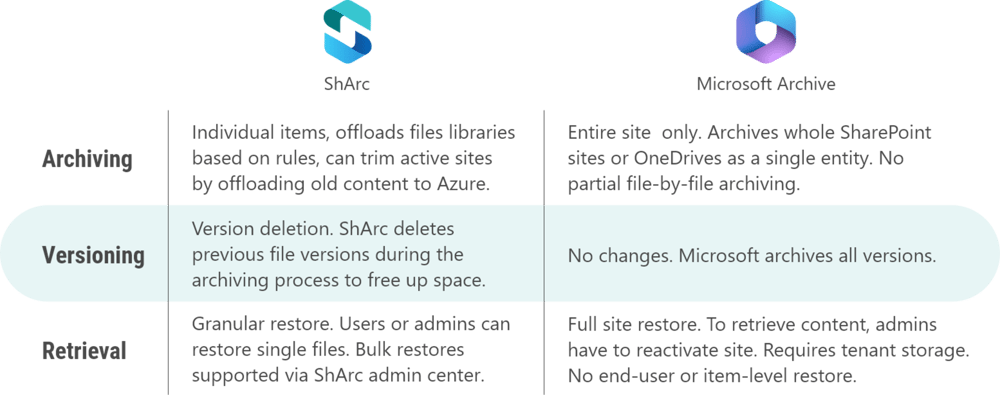
ShArc offers fine-grained, file-level archiving. It works within SharePoint sites by identifying items, like documents, that meet your criteria and archiving them individually. For example, you can set ShArc to archive any file in a site that hasn’t been modified in over 1 year, or archive files larger than 100 MB, etc. These rules can be scoped to specific libraries, sites or apply tenant-wide. Also, specific sites can be completely excluded from ShArc, e.g. for compliance reasons. The key is that active sites remain active, only the content is archived. This allows a “living” archive model: a SharePoint site can continuously archive older content via ShArc while new content is added, keeping the site’s size in check without shutting it down for user's access.
Microsoft 365 Archive works at the site level. You choose an entire site to archive, and the entire site’s contents (documents, lists, pages, everything) get moved to the archive tier together. You cannot pick specific files or subsets of a site to archive with this feature, it’s all or nothing for that site. If only part of a site is inactive, Microsoft generally expects you to perhaps split that data into its own site first if you want to archive it. One effect of this is that Microsoft’s Archive is often used for “complete” content sets like an old project site, a completed team site, or a former employee’s OneDrive. It’s not intended for ongoing trimming of active sites, it’s more about fully archiving a no-longer-needed site. Since July 2026, file-level archiving is also supported. Read more in Microsoft Archive version trimming and file level archiving.
Version handling
Many versions of documents are a main cause of large storage consumption. ShArc offers the feature version retention and cleanup. This allows you to automatically delete unnecessary versions during archiving—based on your rules, of course. Deleting versions frees up a lot of additional storage without costs.
Microsoft 365 Archive does not affect versions. They get archived and restored with the entire site content.
Retrieval of archived data
ShArc allows granular, on-demand retrieval of individual items. If a user or admin needs a specific file that was archived, they can trigger its restoration without bringing back everything else. Users simply click the file in SharePoint and ShArc will retrieve it behind the scenes. Alternatively, an admin can use ShArc’s interface to bulk restore a set of files or even a whole library or site if needed. Because ShArc doesn’t charge for restore operations and the stubs remain in place, it’s feasible to restore and re-archive content as needed with minimal friction and negligible Azure data transfer costs. After a file is restored, it lives in SharePoint again and could be archived again later by rule.
Microsoft 365 Archive requires restoring the entire site to access its content. There is no supported method for a partial restore of just one file or one folder from an archived site, you must reactivate the whole site. The restore is done by an admin in the SharePoint admin center or via PowerShell, and you must have enough available storage quota to accommodate that site coming back. According to Microsoft, reactivations can take up to 24 hours to complete. Once restored, the site and all its files reappear exactly as they were (permissions, versions, etc., all intact). However, after reactivation, Microsoft currently prevents you from immediately re-archiving the same content for four months, likely to discourage using the archive as a frequent toggle. So, Microsoft’s approach to retrieval is all-or-nothing and intended to be infrequent. Essentially, you unarchive a site if it becomes needed again, e.g. a project restarts or a legal case needs that data, use it, and optionally archive it again later. There isn’t a user self-service restore for a single file. This design is aligned with archive scenarios where active use is not expected; if users need a file or two, an admin might export those files for them or temporarily restore the site.
Key decision factors
When deciding between ShArc by Layer2 leading solutions and Microsoft 365 Archive, consider the following key factors and requirements in your scenario. These factors can tilt the decision toward one solution or the other.
Granularity of archiving needs
Do you need to archive individual files or subsets of content while keeping the rest of a site active? If yes, ShArc is uniquely suited for that, as it works at file-level. If you only archive data when an entire site is no longer needed, Microsoft’s solution, with whole-site archiving, may suffice.
End-user access requirements
How important is it that end-users can still see or retrieve archived content? ShArc allows users to seamlessly access archived files on their own. Microsoft 365 Archive effectively hides data from users until an admin intervention. If maintaining user access is important, ShArc has an advantage.
Compliance and retention policies
Are you in a heavily regulated environment with strict retention/audit needs for the data you want to archive? Microsoft 365 Archive keeps archived data fully under Purview compliance (automatic), whereas with ShArc you’ll need to manage compliance for archived blobs manually (and perhaps avoid archiving certain data). If seamless compliance is a must-have, Microsoft’s approach reduces risk.
Cost structure preference
Would you rather pay a known fixed cost annually for a solution, or pay purely per usage? ShArc’s subscription is a fixed yearly cost per TB (good for predictable budgeting). Microsoft’s Archive is variable, scaling exactly with how much data you archive and for how long. Depending on your budgeting approach (CapEx vs OpEx), one model may be more appealing.
Frequency of data retrieval
Do you anticipate needing to frequently restore or access pieces of archived data? If archived files will be tapped often (even if just one file at a time), ShArc provides a much more efficient workflow and no added cost for those retrievals. If archives are truly “write once, read almost never” for you, Microsoft’s solution (with infrequent full restores) might be fine.
Strategic alignment
Consider your organization’s stance on using 3rd-party tools vs. Microsoft-native solutions. Some prefer to leverage Microsoft’s built-in capabilities whenever possible (for support, integration, and future roadmap reasons). Others don’t mind a specialized third-party tool if it delivers better results. If you value having direct Microsoft support and a feature that will evolve within the M365 roadmap, M365 Archive is the choice. If you value the niche expertise and flexibility that Layer2 provides (and perhaps faster feature development in that niche), ShArc is attractive.
Conclusion
Both ShArc and Microsoft 365 Archive can effectively reduce SharePoint storage costs, but they serve different use cases. ShArc is ideal for a “dynamic archive” that keeps users in the loop and tidies up active sites continuously. Microsoft 365 Archive is ideal for a “cold archive” of completed data sets, maximally integrated with compliance, but completely hands-off for end-users until reactivated. In many cases, organizations might use a combination: for example, use ShArc to keep active collaboration sites lean, and use Microsoft Archive for whole sites that have concluded. The decision matrix above should help clarify which solution aligns better with your organization’s priorities and constraints.
Interested in more information? Learn how Microsoft 365 Archive works, what it costs and its limits.