


Last updated: October 21, 2026
Microsoft 365 tenant storage is calculated per tenant and per license: every tenant starts with 1 TB of SharePoint storage and receives an additional 10 GB for each eligible license, pooled across all SharePoint sites and Teams files.
In many interviews, audits, and ShArc demo sessions, we hear the same concern from IT admins: "Why is our SharePoint storage running out so fast?" The root of the problem usually lies in a lack of clarity around how Microsoft 365 tenant storage is calculated, especially with SharePoint Online and Teams files.
The reality is that Microsoft 365 storage isn’t as unlimited as some organizations assume. Understanding your Microsoft 365 tenant storage calculation is critical for planning, budgeting, and avoiding surprise overage charges.
In this article, we’ll explain how storage is allocated in Microsoft 365, how to check your usage, what contributes to your quota, and how to effectively manage your tenant storage to stay within limits.
If you wonder what the difference between M365 storage and SharePoint storage is, the answer is: none. We use the terms synonymously. Also files stored in Teams are saved in a SharePoint Online site collection and count against your storage limit.
You should also read more about SharePoint storage limit if you want to learn everything about your storage.
Default Microsoft 365 tenant storage calculation
Every Microsoft 365 tenant starts with a default SharePoint Online storage quota of 1 Terabyte (TB) per organization. On top of that, Microsoft adds 10 GB of additional storage per eligible license.
Let's calculate an example
Let’s assume your organization has 2,250 Microsoft 365 E3 licenses. Your total storage quota would be:
1 TB (base storage) + (2,250 x 10 GB) = 1 TB + 22.5 TB = 23.5 TB
This means your Microsoft 365 storage quota would allow you 23.5 TB across SharePoint Online, which also includes Teams file storage. A good rule of thumb: every 100 licenses provide an additional 1 TB of storage. You might have read some articles saying only "assigned licenses to active users" would count for the storage quota. But that is not right. An active license in the M365 tenant is sufficient.
Important to know, not all licences have the +10 GB benefit. Plans not including SharePoint (e.g. Visio) or F1 licenses do not add extra storage. Basically, all Microsoft 365 suites (M365 Business Basic, Standard and Premium, Office 365 E1/E3/E5, M365 E3/E5) and SharePoint Online plan 1 & 2 and Teams grant 10 GB per license. For more information, please read:
Storage calculation for educational (EDU) tenants
Licenses for educational (academic) tenants are calculated differently if you have more than 50% EDU licenses assigned. When this threshold is met, an "education pooled storage" model replaces the default storage calculation. This means your organization is granted a single shared storage pool instead of per-user allocations. The storage pool is used across SharePoint, Teams, Exchange, and OneDrive (!) and begins with a generous 100 TB of capacity. Additional storage may be allocated based on the number and type of EDU licenses assigned. This approach is designed to simplify management and better accommodate academic workloads, which often involve large datasets, shared resources, and collaborative content creation.
The calculation is a bit more complicated and described in more detail here:
Differences for non-profit organizations
The storage capacity for non-profits is calculated as for business with one difference: licenses granted by Microsoft for free, known as volunteer-use benefit, do not provide extra storage. Only paid licenses give +10 GB storage. This limitation can pose a significant financial challenge for large non-profit organizations, especially those operating across multiple countries with thousands of users. As storage demands grow due to collaboration, media content, and shared documents, the need to purchase licenses solely to increase storage capacity can strain limited budgets. Organizations must carefully plan their license distribution and consider hybrid strategies, such as mixing free and paid licenses, to optimize both cost and storage availability.
How much storage is available in my tenant and how many TB are used right now?
Let’s get to practice. To find out how much storage your Microsoft 365 tenant has and how much is currently in use, you’ll need to access the Microsoft 365 Admin Center: https://admin.microsoft.com/. Once logged in, navigate to the left-hand menu and select Reports, then go to Usage. From there, look for the SharePoint section, which includes insights on how much storage space is being consumed across your environment. Click on the Storage tab to view a detailed breakdown, including total available storage, used storage in terabytes (TB), and any trends over time. This overview can help you identify whether your organization is approaching its storage limit, and guide decisions around purchasing additional licenses or reorganizing content. For tenants using pooled storage (such as educational or enterprise), this is also where you can monitor shared usage across services like OneDrive, Teams, and Exchange.
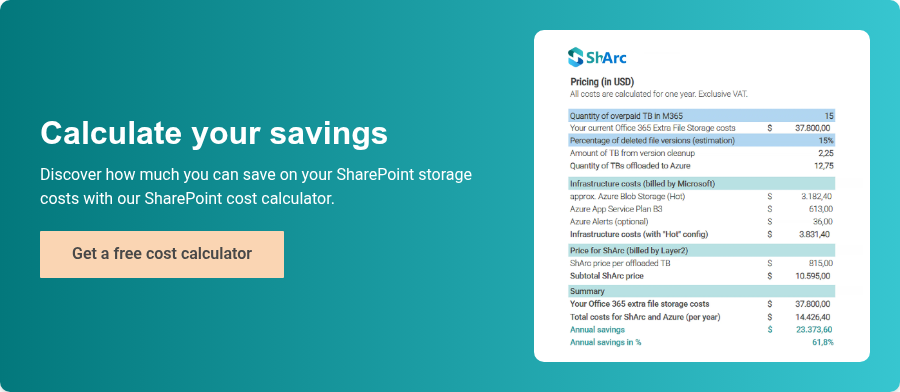
Find out now how much of your storage costs you can save with ShArc
If you'd like to know how much you can really save, we recommend our free SharePoint Cost Calculator. You can easily calculate your potential savings.