
Last updated: May 20, 2026
Version: 0.3
September 2025
This guide explains how to configure your server container to use different releases of ShArc.
Available releases:
- Preview: early access to upcoming features to shape development:
layer2.azurecr.io/sharc:preview - Latest: latest public version:
layer2.azurecr.io/sharc:latest - Alpha for testing bug fixes:
layer2.azurecr.io/sharc:alpha
How to switch releases (Azure App Service):
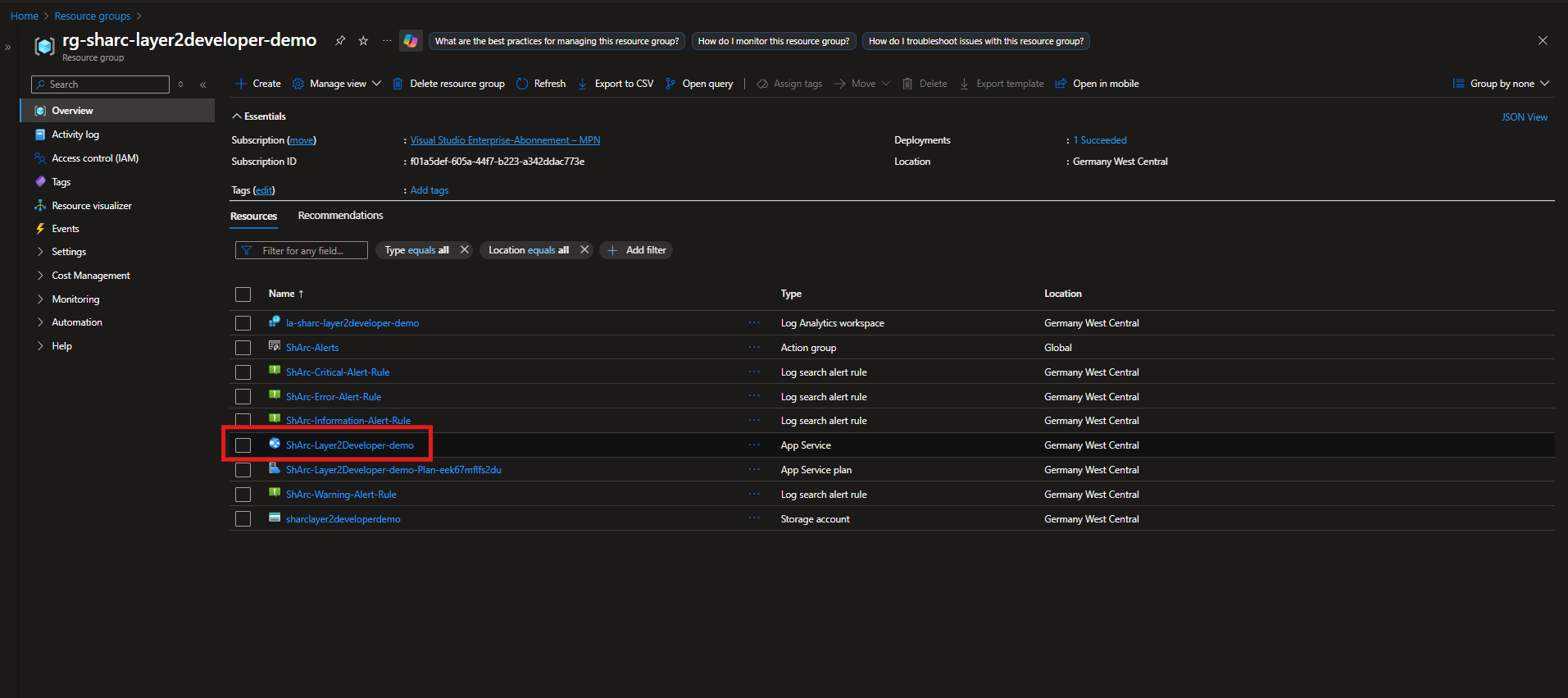
- Navigate to your ShArc Resource Group
- Go to the ShArc App Service
- Open the console and set the subscription to the same one of ShArc:
az account set --subscription yourSubscriptionId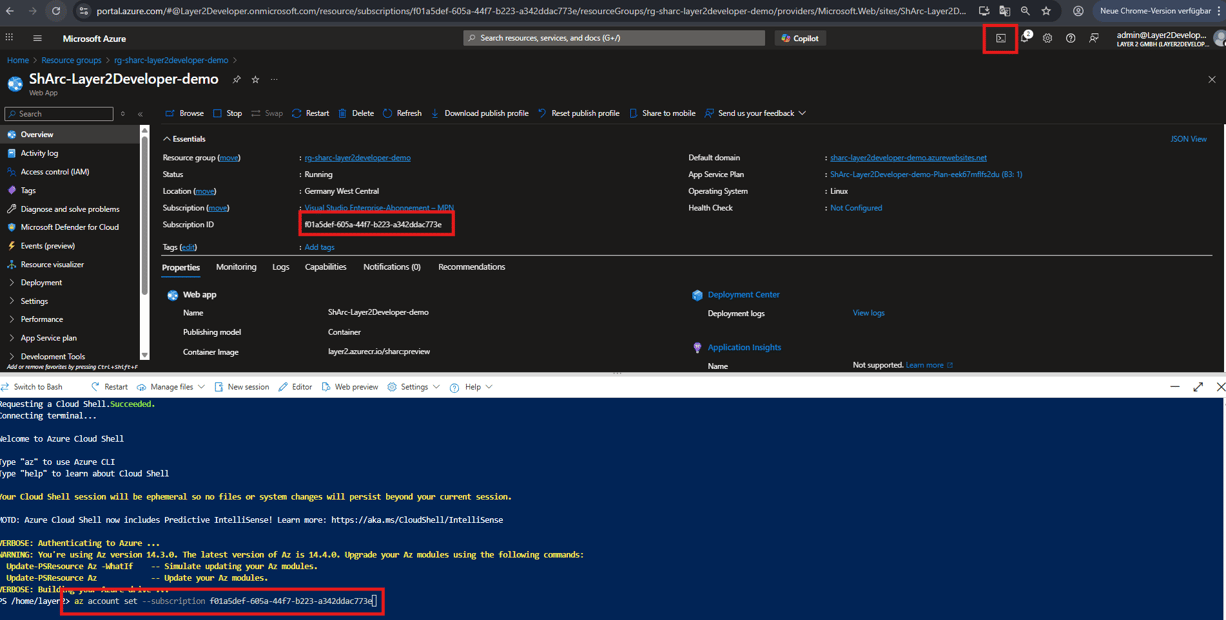
- Then switch the container:
az webapp config container set -g "Your Resource Group for ShArc" -n "Your ShArc App Service Name" --container-image-name "the image - for example layer2.azurecr.io/sharc:latest"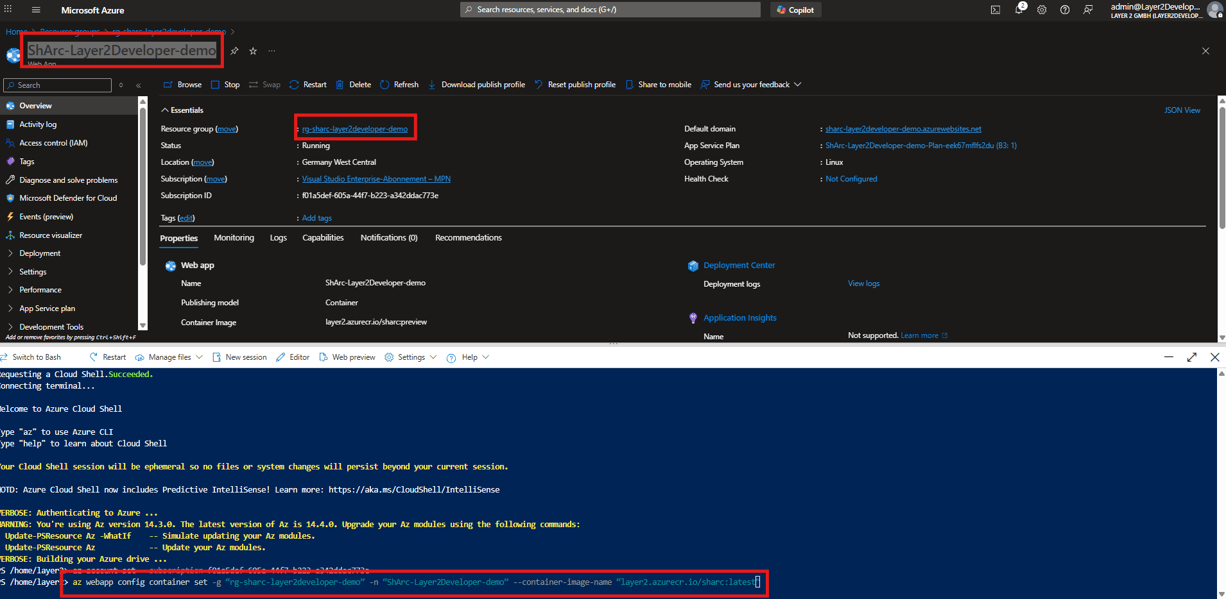
- PowerShell output after this step is done:

- Refresh the page and check the container image. Then stop the server.
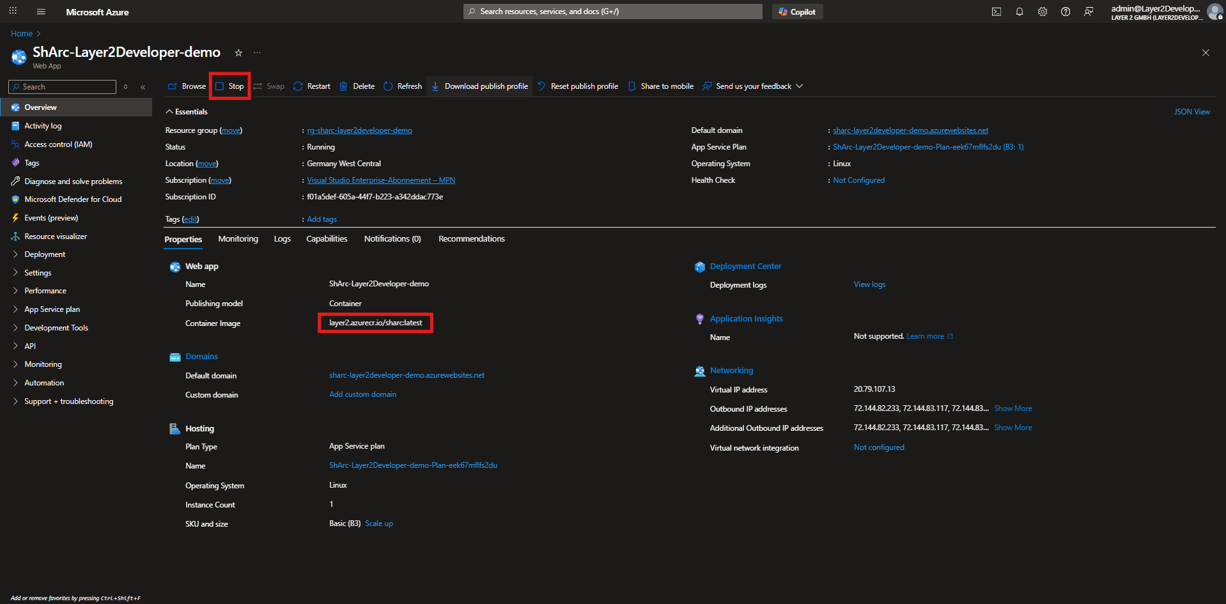
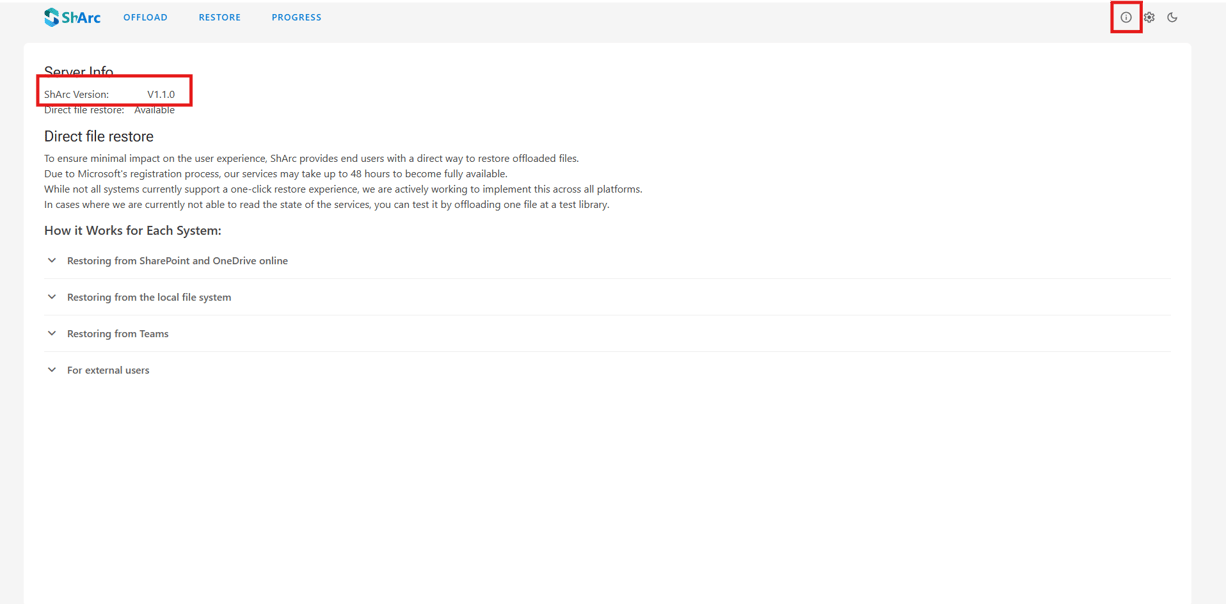
- After 30 seconds start the server again and check the info page. If the version does not say preview or alpha you have the latest one.