

Last updated: July 21, 2026
This guide explains how to deploy the ShArc Desktop client (ShArcDesktop) so that users can restore archived files with a single double-click directly from Windows Explorer.
What the desktop client does
When ShArc archives a file, it leaves a lightweight .sharc stub behind in SharePoint and OneDrive. The ShArc Desktop client turns those stubs back into the original file from inside the user's synced OneDrive folder: the user double-clicks the file in Windows Explorer, ShArc restores the content from cold storage, and the original file opens automatically—with no browser, no SharePoint page, and no extra steps.
Without the desktop client, users can still restore archived files through SharePoint, OneDrive online, or Microsoft Teams in the browser. The desktop client adds the native, native double-click Explorer experience on top of those existing paths. It does not change how restore works anywhere else, and OneDrive sync continues to function normally.
How it works
- The user double-clicks an archived
.sharcfile in a OneDrive-synced folder. - ShArcDesktop opens and signs the user in—silently, if they are already signed in to Windows with their work account.
- ShArc restores the original content from Azure Blob Storage.
- The client waits for OneDrive to sync the restored content down to the machine, showing progress while it does.
- The original file opens automatically.
If a restore cannot be completed, for example because no network connection is available, the client shows a clear native error message instead of opening the file.
Prerequisites
- The customer's ShArc server is deployed and reachable at a known URL, for example
https://sharc-<organisation>.azurewebsites.net. - Target machines run Windows 10, build 1809 or newer, or Windows 11, 64-bit. There is no macOS desktop client; Mac users restore archived files through the browser instead.
- A one-time Azure AD app registration for the desktop client, with tenant-wide admin consent. This requires a Global Administrator or Application Administrator.
- PowerShell 7 or newer to run the registration script.
- For the Intune rollout: Microsoft Intune and an administrator who can add Win32 apps.
- For a standalone single-machine installation: local administrator rights on that machine. Nothing else needs to be preinstalled; the built-in Windows PowerShell 5.1 is sufficient.
- If Layer2 has informed you in advance that an infrastructure update is required, the update must be applied to any existing ShArc installation before proceeding. For instructions, see the infrastructure update section of the ShArc Update Guide.
Choose a deployment method
| Method | Best for | Package |
|---|---|---|
| Microsoft Intune | Rolling the client out to many machines centrally | ShArcDesktop.intunewin |
| Standalone installer | A single machine, such as a tester, a one-off device, or an unmanaged device | ShArcDesktop-Installer.exe |
Both methods install the same client and register the same .sharc file association. They differ only in how the package is delivered and elevated.
Option A – Deploy via Microsoft Intune
After completing Step 1, use the four values to deploy the prebuilt ShArcDesktop.intunewin package.
1. Add the app
Open the Microsoft Intune admin center, then go to Apps > Windows > Add. Choose the app type Windows app (Win32) and upload ShArcDesktop.intunewin.
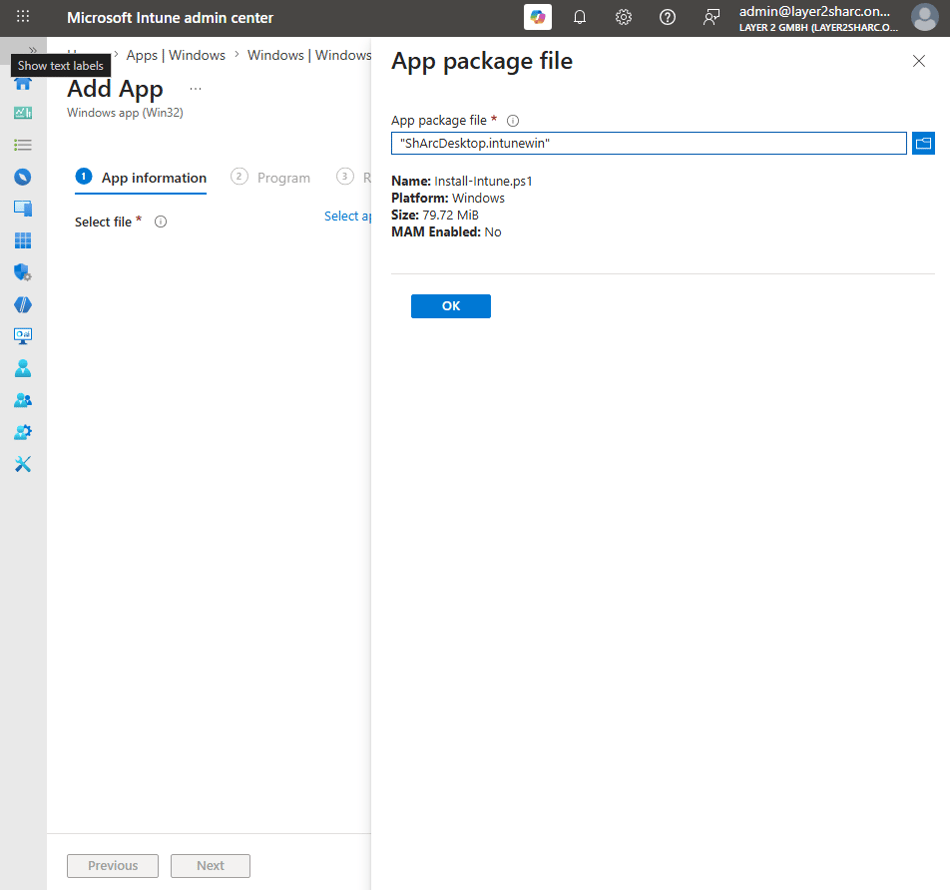
ShArcDesktop.intunewin.2. App information
- Name:
ShArcDesktop - Publisher:
Layer2 GmbH - Description: Restores SharePoint-archived
.sharcstub files on double-click.
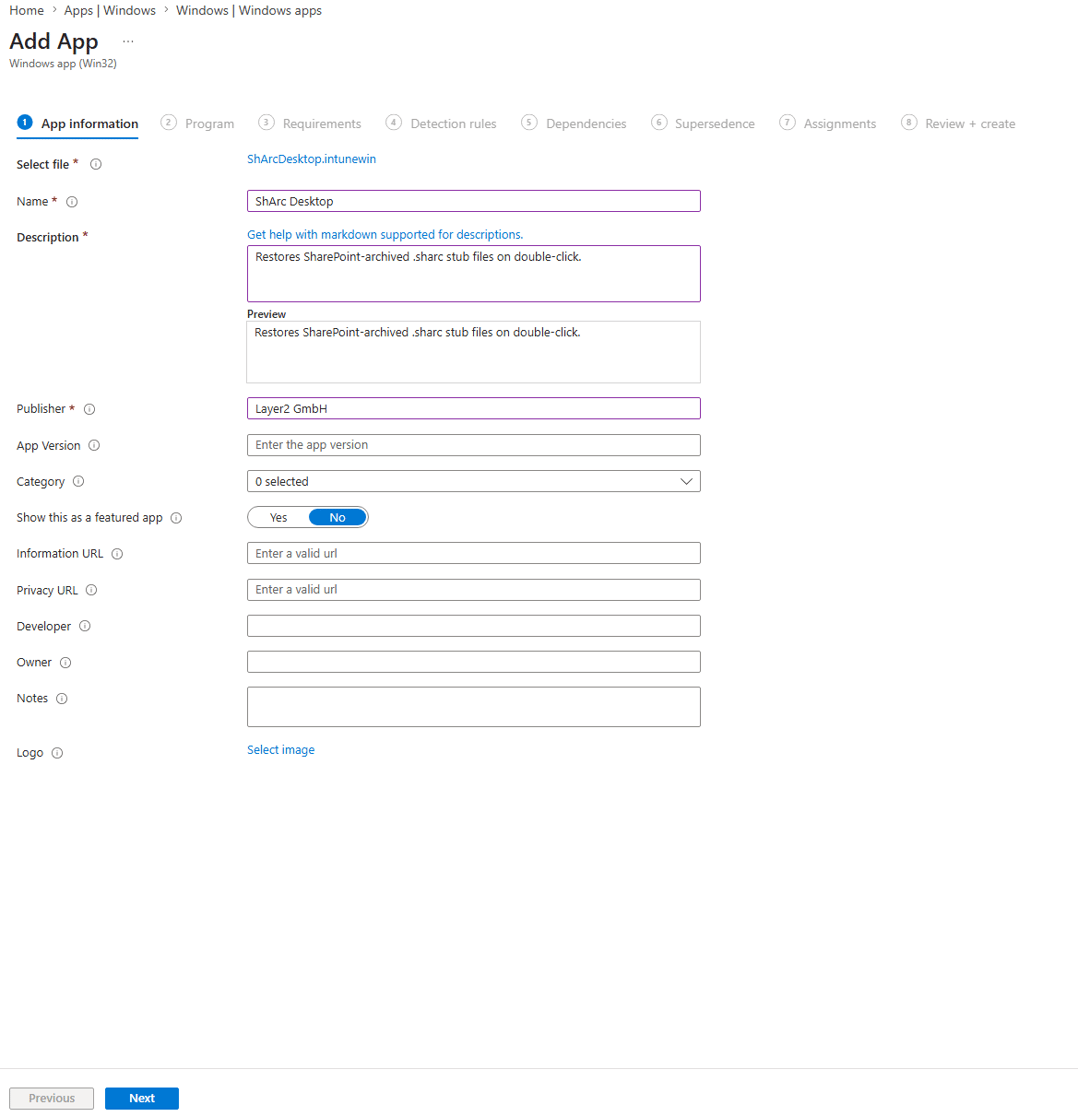
3. Program
Paste the four values from Step 1 into the install command:
powershell.exe -ExecutionPolicy Bypass -File .\Install-Intune.ps1 -ServerUrl "<ServerUrl>" -ClientId "<ClientId>" -ServerClientId "<ServerClientId>" -TenantId "<TenantId>"Use the following uninstall command:
powershell.exe -ExecutionPolicy Bypass -File .\Uninstall-Intune.ps1Set Install behavior to System.
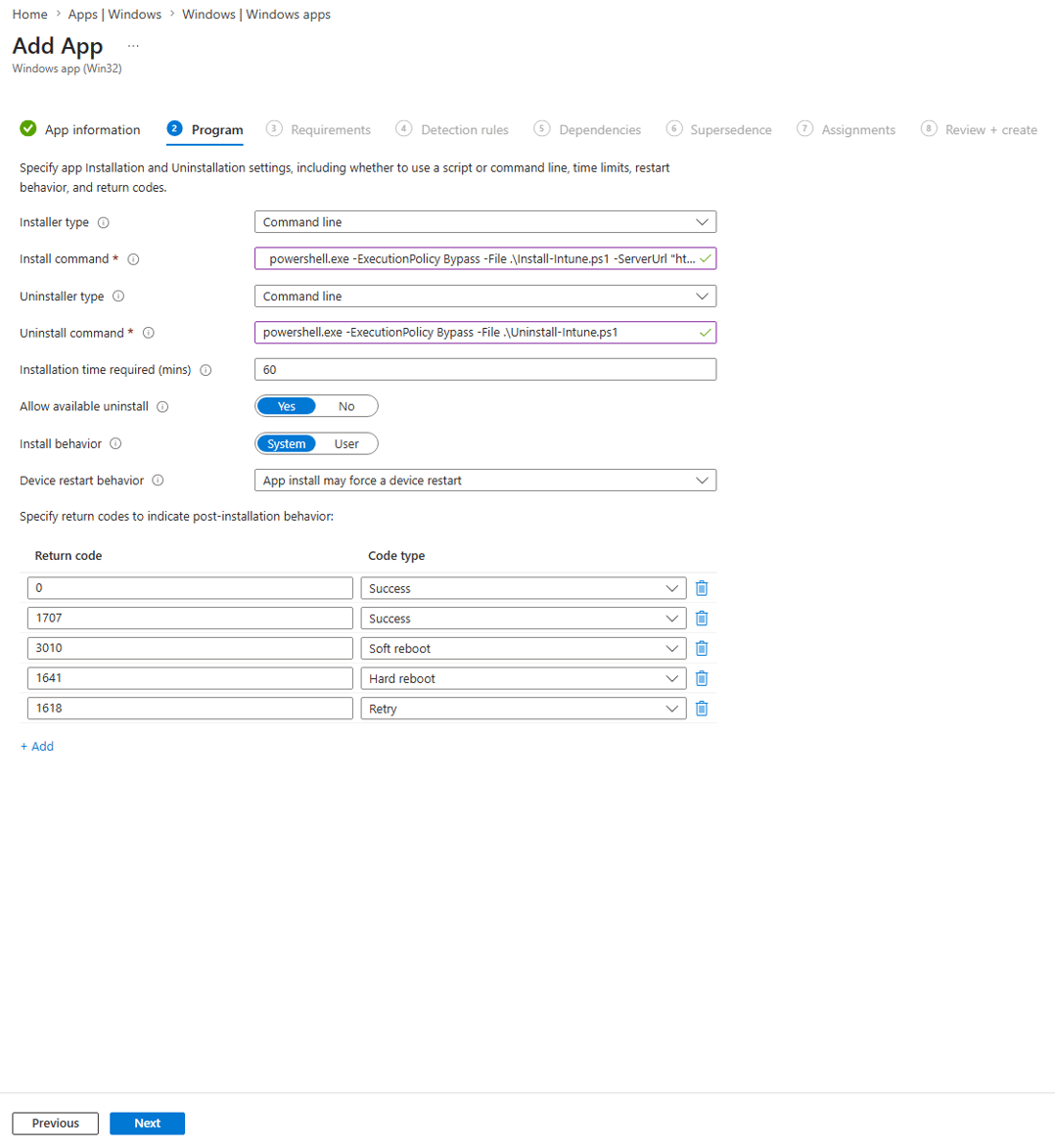
4. Requirements
- Operating system architecture: x64
- Minimum operating system: Windows 10 1809 or Windows 11
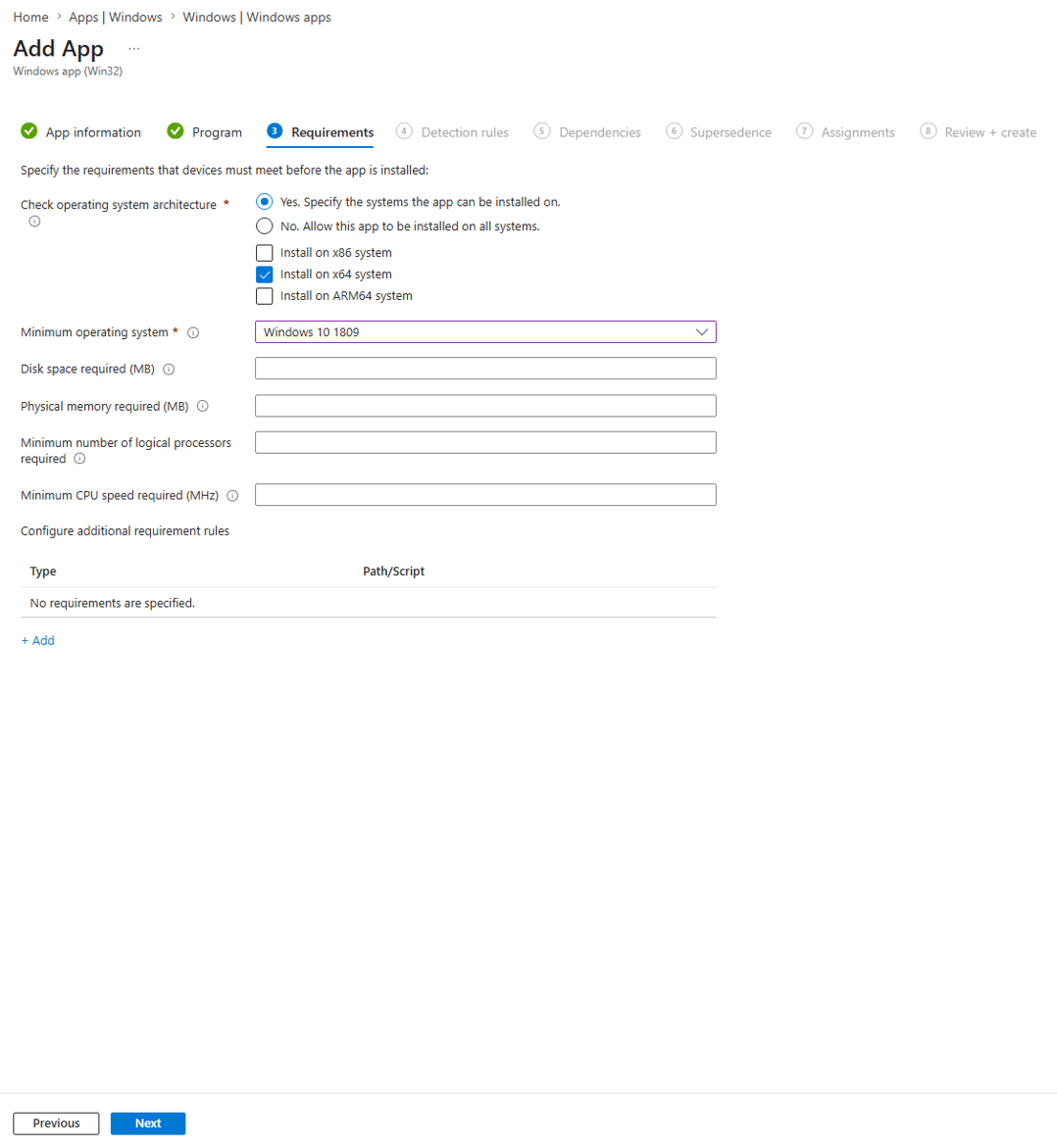
5. Detection rule
Choose Use a custom detection script and upload Detect-Intune.ps1 from the package.
- Run script as 32-bit process on 64-bit clients: No
- Enforce script signature check: No
The detection script reports the app as installed once the registry entry, executable, and .sharc file association are all in place.
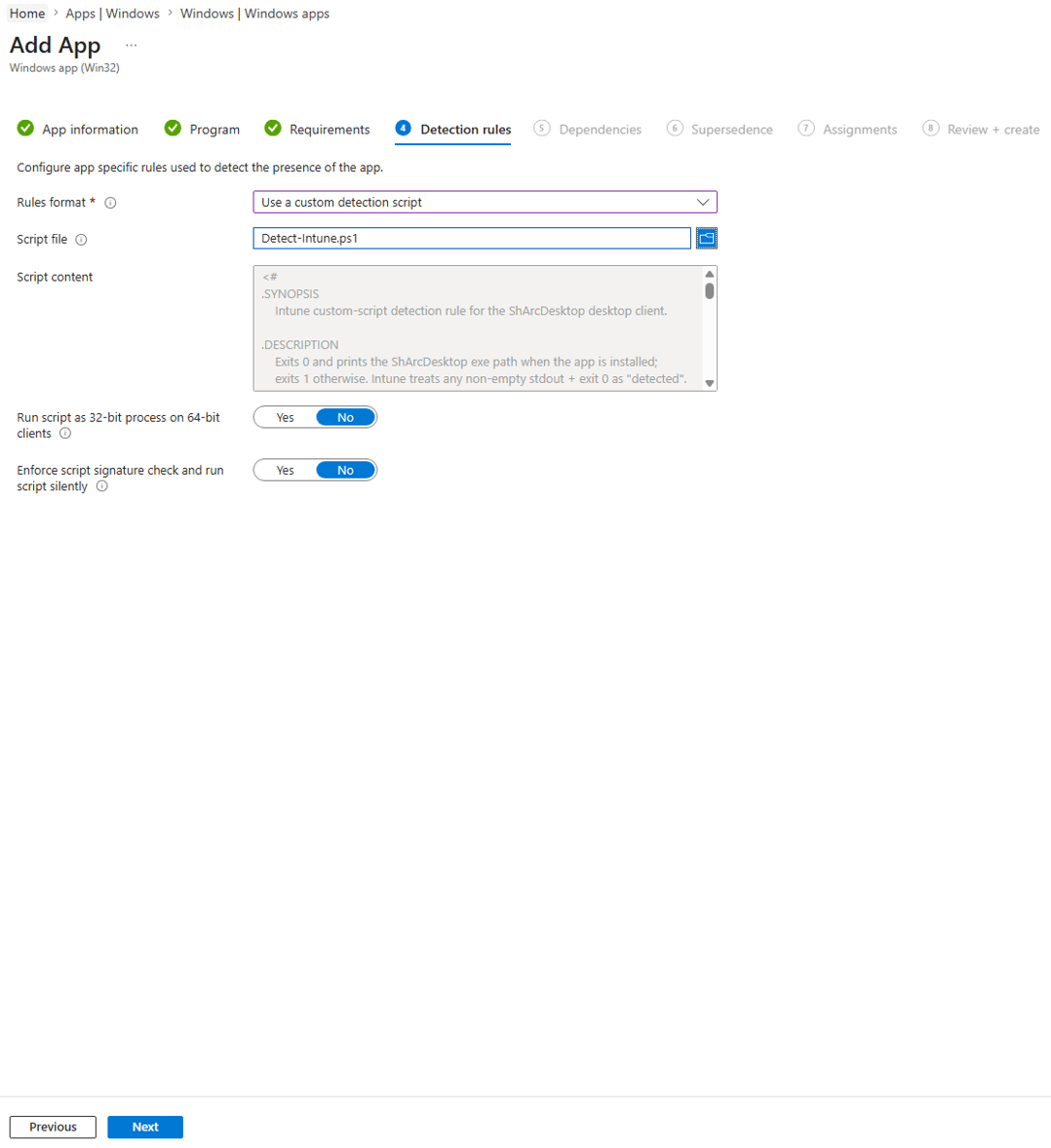
Detect-Intune.ps1 as a custom detection script and leave both options set to No.6. Assignments
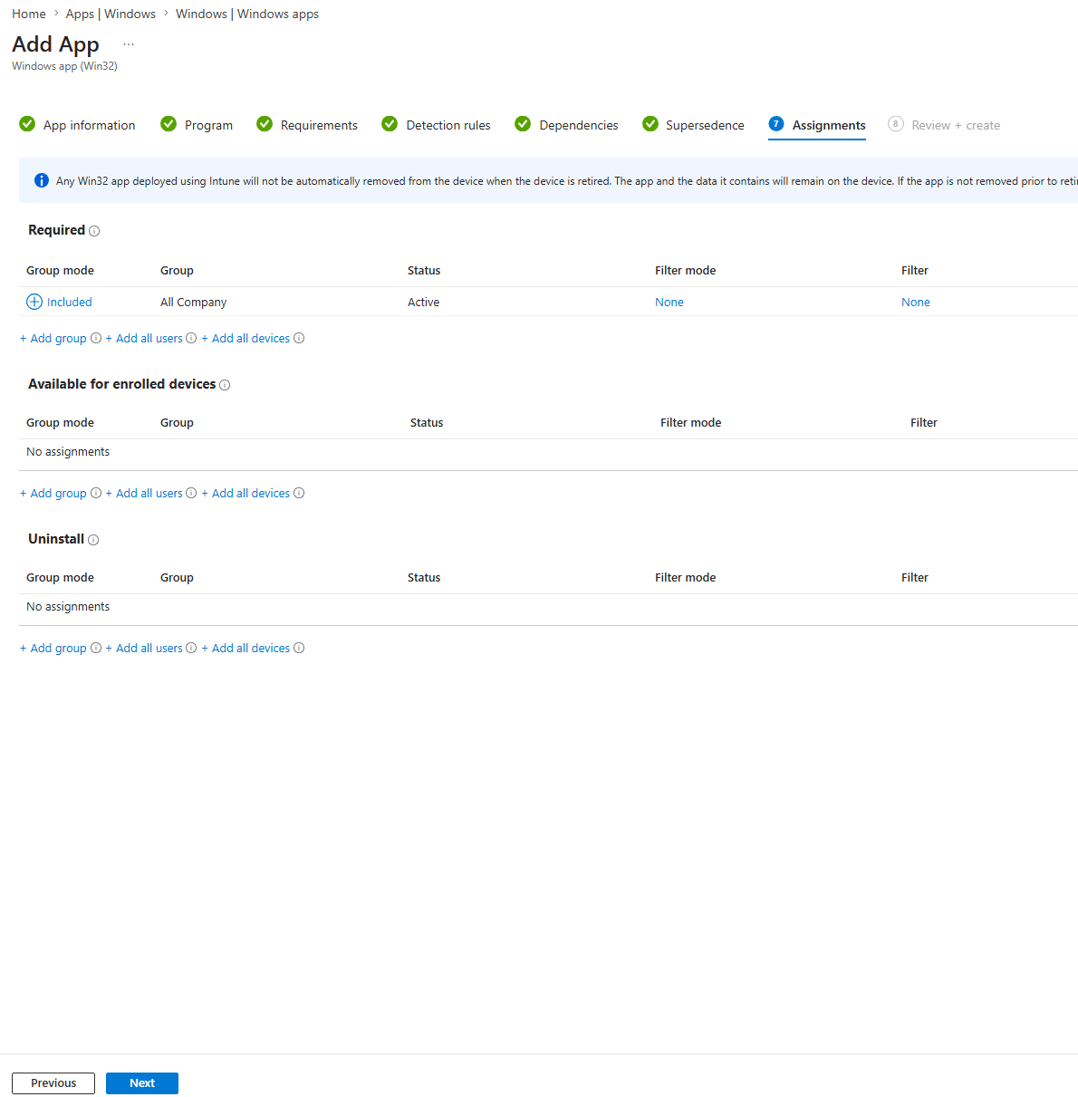
Assign the app to the target user or device group. Monitor the rollout under Apps > ShArcDesktop > Device install status.
Validate on a test device
- Verify that
C:\Program Files\Layer2\ShArc\ShArcDesktop.exeexists. - Verify that
C:\ProgramData\Layer2\ShArc\appsettings.jsoncontains the four tenant-specific values. - Double-click a
.sharcfile and confirm that it is restored and the original file opens.
Option B – Standalone installer for a single machine
For a single machine that is not managed by Intune, use the self-extracting installer ShArcDesktop-Installer.exe. It installs the same client and requires no additional prerequisites. The built-in Windows PowerShell 5.1 is sufficient, and no execution-policy change is required.
- Get the four values by running
Install-Sharc.ps1 -Mode Update, or note them from the output of-Mode Install. - Double-click
ShArcDesktop-Installer.exe, approve the User Account Control prompt, and enter ServerUrl, ClientId, ServerClientId, and TenantId when prompted. - The installer writes
C:\Program Files\Layer2\ShArc\ShArcDesktop.exeandC:\ProgramData\Layer2\ShArc\appsettings.json, registers the.sharcassociation, and adds an entry under Settings > Apps.
What users do once it is installed
No training is required. To restore an archived file from a OneDrive-synced folder, the user simply double-clicks it in Windows Explorer. ShArcDesktop opens, restores the file, and opens it after OneDrive has finished syncing it to the device.
The other restore paths remain available and unchanged. From SharePoint, OneDrive online, or Microsoft Teams, users restore through the browser. Mac users and machines without the desktop client always use the browser-based restore path.
Updating the desktop client
- Intune: Upload the new
ShArcDesktop.intunewinas a new Win32 app version or supersede the existing app. Enrolled devices reinstall silently. - Standalone: Run the new
ShArcDesktop-Installer.exeon the machine.
In both cases, the user configuration at C:\ProgramData\Layer2\ShArc\appsettings.json is preserved.
Uninstalling
On a single machine, open Settings > Apps > ShArcDesktop > Uninstall, or trigger the Intune uninstall. This removes the binaries and the .sharc association. The configuration at %ProgramData%\Layer2\ShArc\appsettings.json and the per-user token cache are intentionally preserved.
To remove the Azure AD desktop client app registration as well, use:
Install-Sharc.ps1 -Mode UninstallAllImportant: This mode also removes the ShArc Azure resources. Run it only when you intend to decommission the entire deployment.
Known limitation – Legacy per-user file association
If a user previously selected Always use this app for .sharc files, for example to open them with Notepad, Windows stores a protected per-user override that a system-level installation cannot safely change.
Affected users can apply one of the following one-time fixes from their own Windows session:
- Right-click a
.sharcfile, select Open with > Choose another app > ShArcDesktop, and enable Always use this app. - Alternatively, run the following command from the user's own session:
Remove-Item "HKCU:\Software\Microsoft\Windows\CurrentVersion\Explorer\FileExts\.sharc\UserChoice" -ForceAfter either fix, double-clicking a .sharc file opens ShArcDesktop.
Troubleshooting and support
If the client does not install, sign in, or restore files as expected, see the companion ShArc Desktop Client troubleshooting guide.
The most useful log locations for support are:
- Client runtime logs, per user:
%LocalAppData%\Layer2\ShArc\logs\ - Intune installation logs on the device:
C:\ProgramData\Microsoft\IntuneManagementExtension\Logs\