


Last updated: September 14, 2026
Learn how to identify large SharePoint sites early, understand what drives their growth, and stop your extra storage costs from rising before they impact your IT budget and performance. Act early before you reach your SharePoint storage limit.
How to identify large SharePoint sites
In almost every SharePoint environment, they exist: legacy sites that have grown unchecked for years. These sites often contain gigabytes or even terabytes of data, frequently lacking proper maintenance.
Whether you are preparing for a migration, performing a routine cleanup, or implementing new governance rules, one critical question arises:
Which SharePoint sites are the largest and why?
You should analyze your environment in a structured way to identify large SharePoint sites before they impact your performance or budget.
SharePoint site analysis with Microsoft
-
Tenant-wide visibility: SharePoint Admin Center and PowerShell show the largest sites, storage usage, and quotas across the tenant.
-
Site and library size analysis: Storage Metrics provides per-site, library, folder, and file size breakdowns to identify hotspots.
-
Version impact insight: Native reports and PowerShell reveal how much storage is consumed by files versus version history.
-
Ownership and activity clarity: Site owners, admins, and last-modified data are available for accountability and cleanup decisions.
If you are struggling with high storage consumption, you should also read how to set up your SharePoint versioning the correct way.
Why you need to find large SharePoint sites
Very large sites (often called "storage hogs") bring several operational challenges that go beyond simple storage costs:
- High migration effort: More data means longer transfer times and higher risks.
- Performance degradation: Search and navigation become sluggish in bloated sites.
- Governance gaps: Large sites often lack clear owners and contain "dark data."
- Version sprawl: Version history often accounts for 70–90% of a site’s total size.
Step 1: Start the SharePoint analysis
The first step to find large SharePoint sites is a comprehensive scan, collecting metadata without affecting your production performance:
- Site collections & subsites: Scans the entire hierarchy.
- Size metrics: Measures total size and content distribution.
- Time stamps: Identifies the last change and last access.
- Site owners: Maps technical data to responsible stakeholders.
Step 2: Use built-in reports
After the scan, external tools provide several reports to help you identify large SharePoint sites instantly:
- Largest SharePoint sites: A ranked list of the top storage consumers.
- Site collections by size: High-level view for tenant admins.
- Content size per site: A breakdown of where the bytes are buried.
- Document libraries by size: Pinpoints specific "hotspots" within a site.
Pro Tip: Sort these reports by "Total Size" in descending order to immediately see the 20% of sites causing 80% of your storage problems.
Step 3: Identify the root cause
Not every large site is "bad." The key is understanding the why. ShArc provides the details.
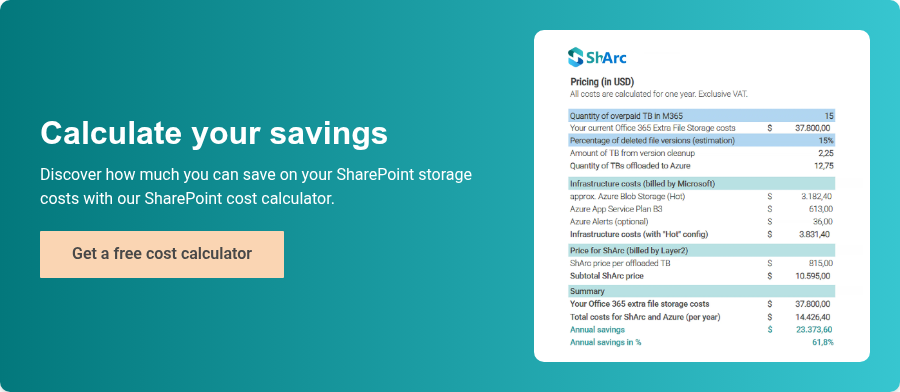
Real-world example: A single 100 MB Excel file with 500 versions consumes 50 GB of space. ShArc makes these hidden "storage eaters" visible. What is this costing you? Use our SharePoint Storage Cost Calculator to see how much you could save by archiving these versions.
Step 4: Export and Strategic Cleanup
All ShArc reports can be exported to Excel. This allows you to:
- Filter for sites larger than 100 GB.
- Pivot data by department or "Last Modified" date.
- Categorize sites for "Delete," "Archive," or "Migrate."
This turns a technical mess into a clear, data-driven migration strategy.
Best Practices for Large Site Management
To keep your SharePoint environment healthy, follow these rules:
- Identify your top 20 largest sites monthly.
- Verify ownership and usage with the stakeholders.
- Clean up versions and redundant data before migrating.
- Implement governance rules (like version limits) to prevent regrowth.
To sum it up
To identify large SharePoint sites efficiently, you need more than the standard admin center. ShArc provides the transparency required to uncover hidden storage costs and prepare for successful migrations. Instead of relying on guesswork, you get a factual foundation for your SharePoint governance.