

Last updated: September 14, 2026
Learn how SharePoint versioning works, why it impacts storage so heavily, and how to configure versioning settings at tenant and library level to stay in control.
Of course, you can learn even more from us on this topic. Read also how to manage and increase your SharePoint storage limit.
How to configure version history to control storage growth
Uncontrolled SharePoint versioning is one of the fastest ways to burn through your Microsoft 365 storage quota. At regular intervals when editing and saving Office documents full copies are created, and without proper SharePoint versioning settings, version history quietly grows into terabytes of wasted space.
If you want to find large files, you can learn all about in SharePoint large file versions and how to find them and of course we can also explain how to identify large SharePoint sites.
TL;DR—SharePoint versioning settings at a glance
-
every file version is a full copy
-
version limits can be set manually or automatically or via powershell on site level
-
defaults are configured at tenant level
-
site owners can override versioning per library
-
existing libraries are not retroactively fixed
-
version sprawl must be cleaned up separately
In our article SharePoint large file versions you can read how to identify large files with versions and why it is important.
What are SharePoint versioning settings?
SharePoint versioning settings define how many versions of a file are kept and for how long. This enables:
-
restore of previous versions
-
change tracking
-
auditability
That’s the upside. The downside is the SharePoint storage need. Versioning is enabled by default and often left untouched for years.
Why SharePoint versioning settings impact storage so much
SharePoint does not store only the changes between versions. Each version is a complete copy of the original file at that moment.
Real-world example
-
Version 1: PowerPoint file, 80 MB
-
Version 2: Video added → PowerPoint file grows to 1.5 GB
-
Versions 3–50: only text edits added → each Version is 1.5 GB
Even though the content barely changes, each version still consumes 1.5 GB. If four users edit that file weekly, you can easily hit hundreds of GB per year for a single document. Multiply that across Teams sites, project libraries, and OneDrive accounts and storage costs spiral fast. If you want to learn more about storage costs, we recommend you to read more about it here: SharePoint storage guide.
Where SharePoint versioning settings are configured
Version history limits can be configured in two places:
1. Tenant-level versioning settings (default)
These settings define the default behavior for:
-
New SharePoint libraries
-
New OneDrive accounts
They do not change existing libraries.
2. Library-level versioning settings
Each document library can override the tenant default. This is powerful but also dangerous, because site owners often increase limits “temporarily” and never roll them back.
Manual SharePoint versioning settings
Manual settings give you explicit control. You can define:
-
Maximum number of versions (100–50,000)
-
Automatic deletion of versions older than:
-
3 months
-
6 months
-
12 months
-
Or a custom period (minimum 29 days)
-
When manual versioning makes sense
-
Highly regulated content
-
Legal or audit-driven libraries
-
Low-change, high-value documents
We also wrote an article about how to delete file versions in SharePoint if you need more details.
How to set manual versioning at tenant level
-
Open SharePoint Admin Center
-
Go to Settings → Version history limits
-
Select Manual
-
Define:
-
Version count
-
Time-based deletion rules
-
-
Save changes
These settings apply only to newly created libraries.
How to set manual versioning at library level
-
Open the document library
-
Go to Library settings
-
Select Versioning settings
-
Configure:
-
Version count limit
-
Version age limit
-
-
Click OK
This immediately affects that library.
Automatic SharePoint versioning settings
Automatic versioning uses Microsoft’s internal algorithm to decide which versions are worth keeping. The principle is simple: the older a version is, the less likely it is to be restored. The system gradually removes low-value versions while keeping:
-
Recent versions
-
Frequently restored versions
-
Versions with higher restore probability
Pros of automatic versioning
-
Less admin effort
-
Safer defaults for large tenants
-
Reduced risk of accidental data loss
Cons of automatic versioning
-
Less transparency
-
Less predictability
-
No strict version count guarantee
How to enable automatic versioning (tenant)
-
SharePoint Admin Center
-
Settings → Version history limits
-
Select Automatic
-
Save and confirm
How to enable automatic versioning (library)
-
Open Library settings
-
Go to Versioning settings
-
Set version time limit to Automatic
-
Save
No version count needs to be defined.
Important limitation: existing version bloat
Changing SharePoint versioning settings does not clean up existing versions.
If a library already contains thousands of versions per file, those versions remain until:
-
They age out (if time-based deletion applies)
-
You actively remove them
This is why many tenants see no immediate storage relief after “fixing” versioning settings.
With its version retention and cleanup feature, ShArc allows you to keep only the versions you want to keep during the archiving process.
Best practices for SharePoint versioning settings
If you want predictable storage growth, follow these rules:
-
Set tenant defaults early
-
Avoid unlimited versions
-
Use automatic limits for general libraries
-
Use manual limits only where justified
-
Audit libraries with custom overrides
-
Regularly review version-heavy libraries
Versioning is a safety net, not a storage strategy.
To sum it up
SharePoint versioning settings are one of those “set it once, regret it forever” configurations. Left unmanaged, they quietly inflate storage, drive up costs, and create performance issues, especially in Teams-connected libraries. Configured correctly, they strike the right balance between collaboration safety and cost control. If your storage keeps growing and you “can’t explain why,” version history is almost always part of the answer.
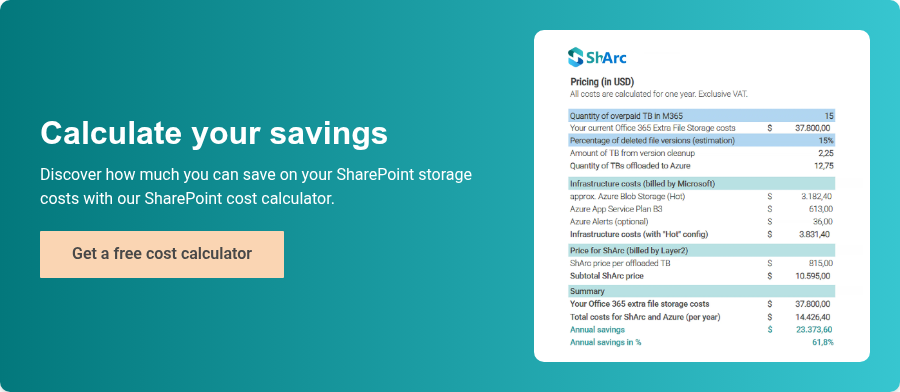
To understand the financial impact, admins can calculate current SharePoint storage costs and potential savings using the SharePoint cost calculator.