

Last updated: September 14, 2026
File versioning is essential for collaboration in SharePoint but unmanaged version history quickly turns into a hidden storage problem. Deleting or cutting file versions in SharePoint is one of the fastest ways to regain control over storage consumption, especially in libraries with large or frequently edited files.
This article explains when and how file versions can be deleted, what limitations admins need to be aware of, and how version cleanup fits into a broader storage optimization strategy.
In the article SharePoint storage limit, you can also learn how to manage the limit and what you can do to increase your storage capacity.
Why deleting file versions in SharePoint matters
Every file version in SharePoint is stored as a full copy, not a delta. Over time, this leads to exponential storage growth often without users or admins noticing. Common triggers include:
-
Large files edited repeatedly
-
Teams-connected libraries with autosave
-
Long-running project sites
-
Libraries with unlimited version history
Deleting older file versions is often the quickest way to free up storage without impacting daily work. If you are not sure how you can identify large file versions you can read all about it in SharePoint large file versions.
Who can delete file versions in SharePoint?
Permissions matter.
-
Site owners and admins can delete file versions
- Users who have contribute rights, i.e., who are at least in the Members group, can also delete versions in the library, while users who only have read rights may not delete versions.
-
Regular users can usually view versions, but not remove them
-
Version deletion can be done:
-
Per file
-
Per library via settings only applies to the future and does not change the current files
-
At scale using third party admin tools or scripts
-
From a governance perspective, version deletion should always be controlled centrally.
How to delete file versions manually, per file
For individual files, SharePoint allows direct version cleanup:
-
Select the file in the document library
-
Open the file menu
-
Choose version history
-
Delete selected older versions
-
Keep the most recent or relevant versions only
This approach works well for spot fixes, but it does not scale across large libraries or multiple sites.
How to cut file versions using library settings
To prevent version buildup going forward, admins can limit version history at the library level. Key options include:
-
Limiting the maximum number of versions
-
Enabling time-based deletion of older versions
-
Switching from manual to automatic version limits
Important: Changing these settings affects future versions, not existing version history.
Learn more about SharePoint versioning settings to understand how you can set up SharePoint to save storage space and for more automation.
Automatic deletion vs manual cleanup
SharePoint offers two distinct approaches.
Manual version limits
-
Fixed number of retained versions
-
Full control over retention
-
Higher admin overhead
-
Best for regulated or sensitive libraries
Automatic version limits
-
SharePoint removes low-value, older versions automatically
-
Less configuration effort
-
More predictable storage growth
-
Ideal for large, active collaboration sites
Neither approach removes historical version bloat instantly.
The limitation most admins overlook
Deleting file versions in SharePoint is not retroactive by default. That means:
-
Existing files may still have hundreds of versions
-
Storage usage may not drop immediately
-
Cleanup often requires:
-
Manual intervention
-
Scripts
-
Third-party tools
-
This is why many organizations feel that “version limits didn’t help”. The cleanup step was missing.
Risks of aggressive version deletion
Before cutting file versions in SharePoint, organizations should carefully assess the potential impact on compliance, operations, and user trust. Removing versions too aggressively can create new risks while trying to solve a storage problem.
Key considerations include:
-
Compliance and audit requirements
Many organizations are subject to regulatory obligations that require document history to be retained for a defined period. Deleting versions without aligning with compliance policies can lead to audit gaps or violations. -
Legal hold or retention policies
Files under retention or legal hold must not have versions removed outside of approved processes. Version deletion must always respect existing Microsoft 365 retention rules and legal constraints. -
Business-critical documents
Strategic, contractual, or financial documents often rely on version history for traceability. Removing too much history can limit the ability to review decisions, changes, or approvals. -
Restore expectations from users
Users often assume they can roll back changes, even weeks or months later. If version history is reduced without communication, IT may face unexpected support requests or loss-of-trust issues.
The objective is not to remove all version history, but to remove unnecessary and low-value versions that no longer serve a business or compliance purpose. With ShArc, version retention and cleanup run automatically, based on rules you define.
Best practices for deleting file versions safely
To reduce risk while still reclaiming storage, version cleanup should follow a controlled and transparent approach. Recommended best practices include:
-
Keep a small buffer of recent versions
Retaining a limited number of recent versions preserves rollback capability while preventing excessive storage growth. -
Apply stricter limits only to libraries with large files
Libraries containing media, design files, or project deliverables benefit most from tighter version controls. Not all libraries require the same rules. -
Review Teams-connected libraries first
Teams libraries generate versions rapidly due to autosave and collaboration. They are often the largest contributors to version sprawl and the best starting point for optimization. -
Communicate changes to business owners
Inform stakeholders before enforcing new limits. Clear communication reduces resistance and aligns expectations around restore behavior and collaboration. -
Monitor storage impact after cleanup
Track storage consumption before and after version deletion to validate the effect and adjust policies as needed. Optimization should be measurable, not assumed.
Version control should support collaboration and accountability, not silently drain budgets or force reactive storage purchases.
Scripts for admins
Option a (recommended): tenant batch trim job (SPO PowerShell)
This matches the reality of large environments: queue a job, let it run async in batches, monitor it, stop it if needed.
# Requires: SharePoint Online Management Shell# Install-Module -Name Microsoft.Online.SharePoint.PowerShell -Force$adminUrl = "https://contoso-admin.sharepoint.com"$siteUrl = "https://contoso.sharepoint.com/sites/site1"Connect-SPOService -Url $adminUrl# --- Choose ONE trimming mode ---# 1) Trim by AGE (delete versions older than X days)New-SPOSiteFileVersionBatchDeleteJob -Identity $siteUrl -DeleteBeforeDays 180# 2) Trim by COUNT (keep only X major versions)# New-SPOSiteFileVersionBatchDeleteJob -Identity $siteUrl -MajorVersionLimit 100 -MajorWithMinorVersionsLimit 0# 3) Trim by AUTOMATIC logic# New-SPOSiteFileVersionBatchDeleteJob -Identity $siteUrl -Automatic# Monitor progressGet-SPOSiteFileVersionBatchDeleteJobProgress -Identity $siteUrl# Stop the job if needed (does NOT restore already deleted versions)# Remove-SPOSiteFileVersionBatchDeleteJob -Identity $siteUrlOption b (granular): PnP PowerShell “keep last N versions per file”
Use this if you want a script that’s more “hands-on” for a single library / targeted cleanup, and you want to demonstrate control (but be honest: it’s slower and easier to throttle).
# Requires: PnP.PowerShell# Install-Module PnP.PowerShell -Scope CurrentUser -Force$siteUrl = "https://contoso.sharepoint.com/sites/site1"$libraryTitle = "Documents"$keepLast = 10Connect-PnPOnline -Url $siteUrl -Interactive# Pull items in pages to avoid memory blowups$items = Get-PnPListItem -List $libraryTitle -PageSize 2000 -Fields "FileLeafRef","FileRef"foreach ($item in $items) { $fileRef = $item["FileRef"] if (-not $fileRef) { continue } try { $versions = Get-PnPFileVersion -Url $fileRef | Sort-Object -Property Created -Descending if ($versions.Count -le $keepLast) { continue } $toDelete = $versions | Select-Object -Skip $keepLast foreach ($v in $toDelete) { # Permanent deletion of that version Remove-PnPFileVersion -Url $fileRef -Identity $v.ID -Force } Write-Host "Trimmed versions for: $fileRef" } catch { Write-Warning "Failed for $fileRef : $($_.Exception.Message)" }}Important information for the scripts
-
Version deletion is permanent and can break expectations around rollback.
-
Retention, legal hold and compliance must be respected. Don’t encourage blind cleanup operations.
-
Library settings aren’t retroactive. They don’t clean existing bloat; scripts/jobs do.
Final step: understand how much you can save
Before starting large-scale version cleanup, it’s worth understanding the financial impact. To optimize your storage you should:
-
Check your current SharePoint storage usage
-
Identify how much storage is tied up in file versions, for example with the script in our article about the hidden cost of cold data.
-
Quantify potential savings from deleting or cutting versions
-
Compare current costs with optimized scenarios
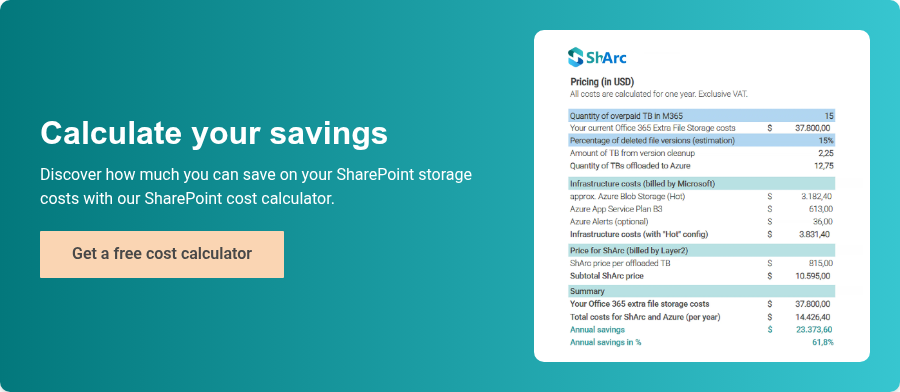
Many organizations use a SharePoint cost calculator at this stage to really understand how much they can save. This turns version cleanup from a technical task into a data-driven decision.