

Last updated: September 14, 2026
Large files combined with excessive version history are one of the most common and least visible drivers of SharePoint storage growth. A single oversized file with hundreds of versions can silently consume hundreds of gigabytes, even if users barely notice it. Here you can read all about SharePoint large file versions and how to find them.
This article explains what qualifies as large files in SharePoint, why file versions multiply storage usage, and how administrators can identify large files with versions before storage costs escalate. Read also more about SharePoint storage limit if you need information on how to manage and increase your storage.
What are “large files” in SharePoint?
Microsoft defines file size limits in SharePoint Online, but from a storage perspective, “large” often starts well below the technical maximum. Key facts IT admins should know:
-
Maximum file size in SharePoint Online: up to 250 GB per file
-
Large files are commonly:
-
PowerPoint presentations with media
-
Video and audio files
-
CAD, design, or engineering files
-
Backup or export files uploaded temporarily
-
-
Large files are frequently edited collaboratively, which triggers versioning
A 5–10 GB file may already be a storage risk if versioning is enabled and left unmanaged.
Why large file versions consume so much storage
SharePoint versioning creates a full copy of the file for each version, not just the changes. That means:
-
A 10 GB file with 50 versions = 500 GB of storage
-
Even minor edits like metadata or text changes create a full new version
-
Files edited in Teams-connected libraries accumulate versions faster due to frequent autosave
From a storage perspective, large files with version history behave more like backups than documents.
Where large file versions typically accumulate
In most tenants, version-heavy large files are not evenly distributed. Common hotspots include:
-
Microsoft Teams document libraries
-
Project sites with long-running deliverables
-
Marketing or sales libraries with media-heavy presentations
-
Archived project folders that are still being edited “occasionally”
-
OneDrive accounts used for temporary storage
These locations are rarely monitored after initial setup.
How to identify large files with versions in SharePoint
1. Sort libraries by file size (manual approach)
For a quick check in a specific site:
-
Open the document library
-
Switch to List view
- Enable Show columns
-
Sort by File size
-
Identify unusually large files
-
Open Version history for those files
This method works well for spot checks but does not scale across large tenants.
2. Check version history of individual files
To confirm whether versions are the real issue:
-
Select the file
-
Open the context menu
-
Choose Version history
-
Review:
-
Number of versions
-
Frequency of changes
-
File size consistency across versions
-
If all versions are similarly large, storage usage grows linearly with every edit.
What IT Admins should analyze
Number of versions: Microsoft allows libraries to store Major versions and Major + minor (draft) versions. Default configurations can allow 500+ versions per file depending on tenant policy. If version limits are not actively managed, version growth is linear with user activity.
Frequency of changes
Look for patterns such as daily automated edits, workflow-triggered updates, Power Automate processes and metadata modifications creating versions.
File size consistency across versions
It is critical if version 1 has 220 MB, version 2 has 218 MB and version 3 221 MB because your storage increases almost linearly with each new version.
3. Use reports to identify large files across sites
For broader visibility, admins typically rely on:
-
SharePoint storage usage reports
-
PowerShell scripts querying file size and version counts
-
Third-party reporting tools that combine:
-
File size
-
Version count
-
Last modified date
-
Location
-
Microsoft does not provide a single built-in report that shows large files plus version history in one view, which is why this issue often goes unnoticed.
In our article about how to identify large SharePoint sites you can also learn why your site is growing so fast and how to handle it.
Why this matters for CIOs and IT leadership
Large file versions don’t just increase storage costs, they introduce operational risk across the entire Microsoft 365 environment. What often starts as a few oversized files with extended version history can quickly turn into a systemic issue that affects performance, budgeting, and internal trust in IT.
Key operational impacts include
-
Faster exhaustion of SharePoint storage quotas
Large files with many versions consume storage exponentially. Quotas that were planned to last years can be reached in months, often without clear warning signals. -
Unplanned budget increases for additional storage
When storage runs out unexpectedly, IT teams are forced into reactive purchasing decisions. This disrupts budget planning and makes storage costs harder to justify to finance and leadership. -
Reduced performance in large libraries
Libraries containing many large, version-heavy files become slower to load, search, and manage, especially in Teams-connected sites where frequent background activity accelerates version creation. -
Longer backup and restore times
Every stored version increases the amount of data that must be processed during backups, migrations, and restores. This extends recovery times and raises the risk during incidents or compliance-related restores. -
Difficult conversations with business units
Storage limits are often hit without users understanding why. Explaining that a small number of files with excessive versions caused the issue can lead to friction and resistance, especially when restrictions are introduced late.
In most organizations, this problem surfaces too late. Usually when SharePoint storage is already close to its limit and additional capacity must be purchased immediately. At that stage, there is little room for optimization, and decisions are driven by urgency rather than strategy.
Best practices to control large file versions
To prevent version-driven storage bloat, organizations need a combination of clear rules, regular review, and visibility into actual usage patterns. Isolated configuration changes are rarely sufficient on their own.
-
Set reasonable version limits at tenant level
Define sensible default limits for new SharePoint libraries and OneDrive accounts. Tenant-wide defaults establish a baseline that prevents uncontrolled version growth before it starts. -
Avoid unlimited versions in libraries with large files
Libraries that store media, design files, or project deliverables should never allow unlimited version history. Even moderate editing activity can cause rapid storage expansion when file sizes are large. -
Apply automatic version limits where possible
Automatic versioning provides a balanced approach by retaining high-value versions while removing older, low-value ones. This reduces administrative overhead while keeping collaboration risks low. -
Review Teams-connected libraries regularly
Teams drives frequent background saves and collaborative edits, which accelerates version creation. Libraries connected to active Teams should be reviewed on a recurring basis to ensure version settings still match their usage patterns. -
Identify inactive large files that no longer need frequent versioning
Files that are rarely accessed or no longer actively edited often retain extensive version history without any real business value. These files are prime candidates for version cleanup or alternative storage strategies.
Most importantly, visibility comes before optimization. Without clear insight into where large files, version-heavy documents, and inactive data reside, storage management becomes reactive. Sustainable control starts with understanding what is stored, how it is used, and why it continues to grow.
If you want to take action right now, learn how to configure your SharePoint versioning settings and how to delete file versions in SharePoint. This is especially helpful when you want to quickly delete versions.
Unlike manual processes, features such as version retention and cleanup allow you to quickly and effectively manage large versions.
Final check: understand the cost impact
Before making structural changes or enforcing stricter limits, it’s critical to understand how much storage is currently tied up in large file versions and what that means financially.
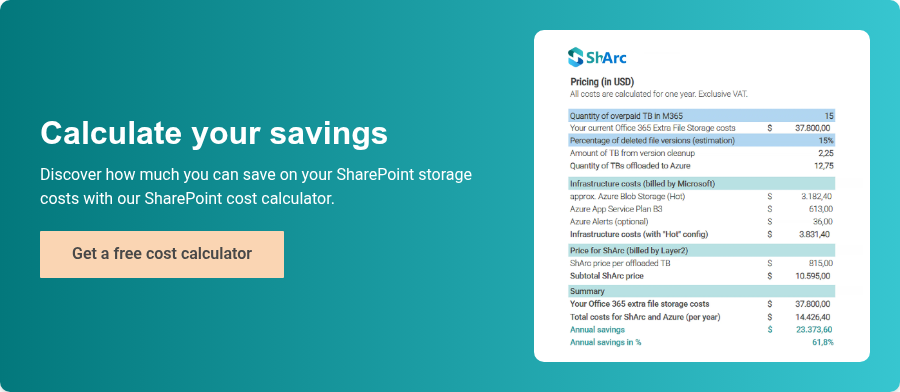
At this stage, many organizations use a cost calculator to:
-
Estimate current SharePoint storage costs and potential savings
-
Understand the cost impact of large files and version history
-
Compare current costs with potential savings through optimization and archiving strategies
This allows decisions to be based on numbers—not assumptions.